
Install BeebEm
Cliff Notes > Steam Deck
Choosing how to emulate the BBC Micros
There appear to be, at first glance, several options for emulating BBC micros on the Steam Deck. For example, I hear good things about how easy "Steam ROM Manager" makes life for people who want to emulate older systems, and that M.A.M.E. - an emulator that "Steam ROM Manager" installs - supports emulating BBC micros. However, "Steam ROM Manager" does not know what a BBC Micro is, so we're left to fend for ourselves somewhat.
"EmuDeck" promises to make emulating easier too, and it installs "Steam ROM Manager" to boot. One of the extras that it installs above and beyond "Steam ROM Manager" is "Emulation Station DE" (sometimes abbreviated to ESDE or ES-DE). Not only does this actually recognise BBC images, but if it recognises a game it can download quite a nice video of gameplay rather than a still image as the graphic to display when selecting a game. There's a "one man's meat is another man's poison" choice here however. If you have a HUGE catalogue of BBC games it might make sense to use ES-DE to keep the BBC games separate from the main Steam interface. However if, like me, you have a comparatively modest selection of "favourite games" from "back in the day" then you might want to have your BBC games available just like any other game. After buying a BBC micro I was not exactly flush with money, so the games I bought were comparatively few and far between - I would rather launch my games from Steam directly at this point, so that puts "EmuDeck" out of the running FOR ME. That and the fact that it didn't know the second game I tried to set up in it, so I didn't have a cute video or even a still image to represent it.
All of which pointed me towards returning to my default position for many years - BeebEm. Now, the Steam Deck runs Linux and there IS a Linux version of BeebEm (the original was designed for Unix but nowadays the Windows version seems to lead the way). So - BeebEm for Windows it is!
Let's download BeebEm
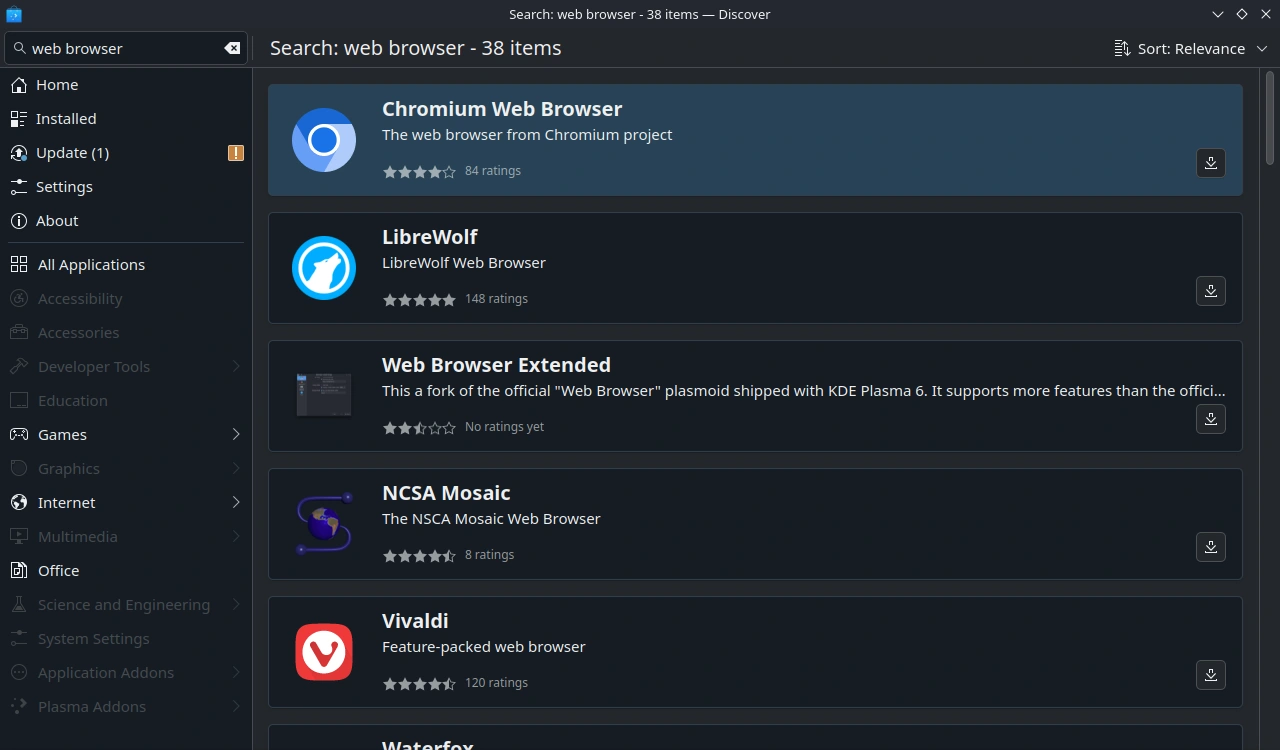
First, we need a Web BrowserYou're already familiar with Discover, so it won't take you long to find and install the Web Browser of your choice - and there does appear to be plenty of choice! Personally I have chosen FireFox, but the choice really is yours.
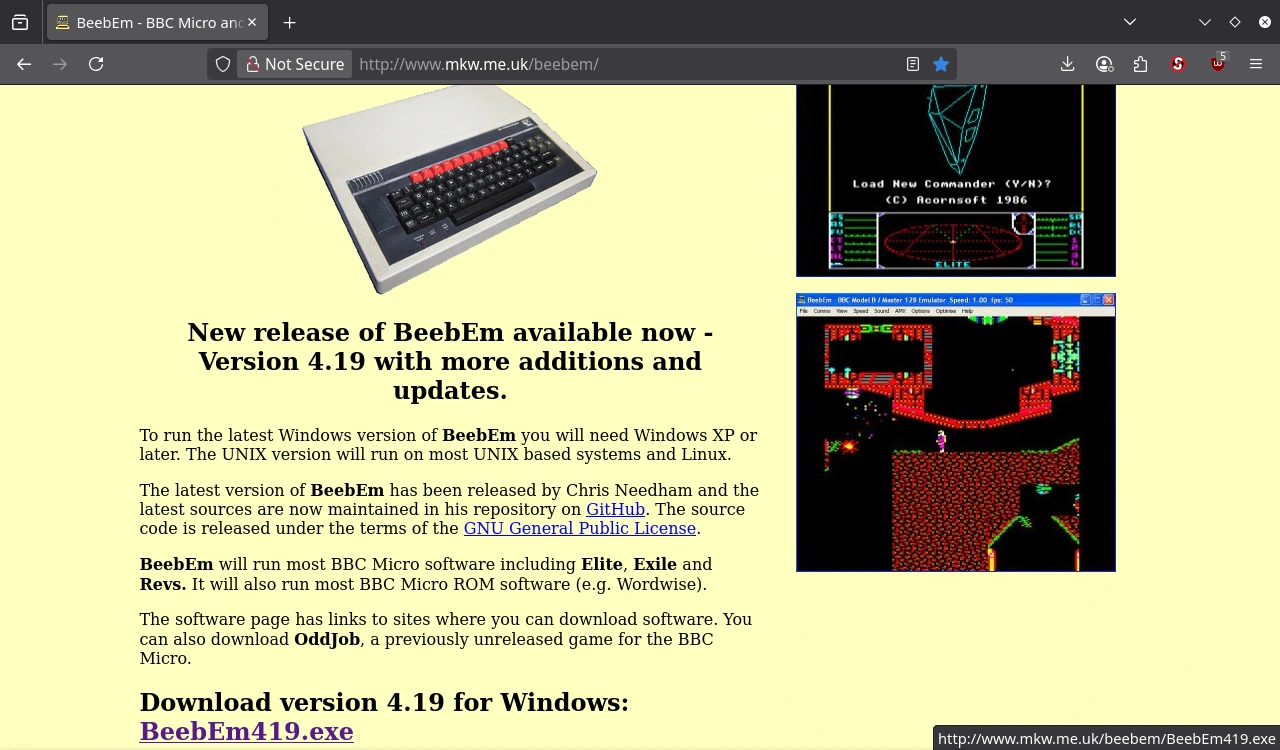
It won't take long to install your chosen web browser and wander over to the BeebEm - BBC Micro and Master 128 Emulator website. From there simply download the current "release" of BeebEm. It's in the bottom left corner of my FireFox window - with the link helpfully spelt out for me by FireFox over to the right. It's always good to know what files you're downloading, where you're getting them from AND where you're putting them!
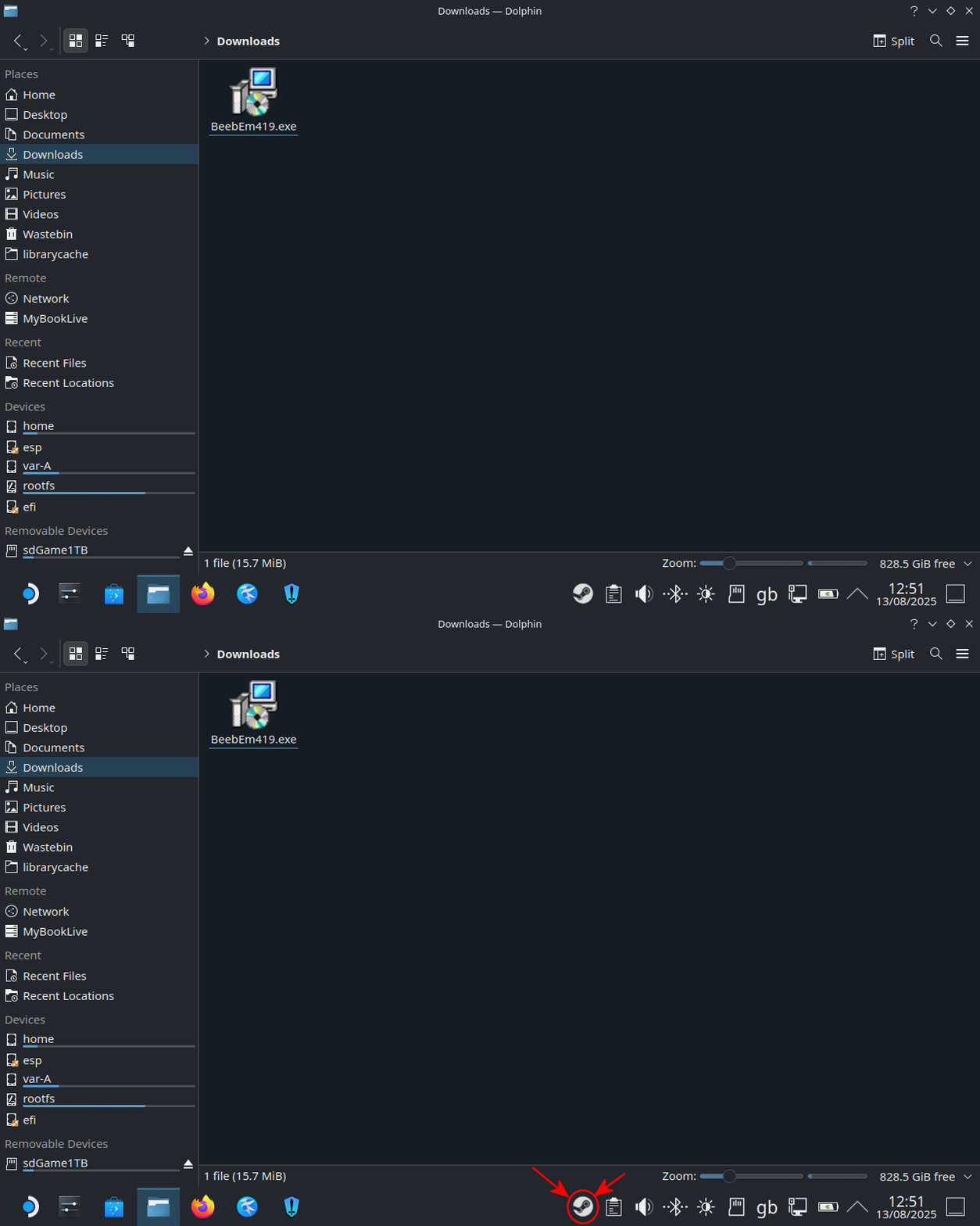
I must apologise here - I really can't remember whether the "default" file manager (called "Dolphin" because... well, why not?) is installed from the get-go or not, nor even if it is "Pinned" to the "Task Manager" (program toolbar). If it's not, give me a holler somewhere and I'll try to add in a bit here about how to find your "File Manager".
Once you've located your File Manager", let's go look in the "Downloads" folder. Here you can see the BeebEm Windows installer.
We won't actually be DOING anything with the File Manager for the moment, apart from verifying that we know where the downloaded file is. While we're here though, let's close Steam. It's running in the background and can prevent programs from updating the Steam library. Right click on the icon in your "Task Manager" and choose "Exit Steam".
Let's go load up the "Heroic Game Launcher" (which will be altering the Steam Library for us) to get BeebEm installed in a useful way...
Installing BeebEm
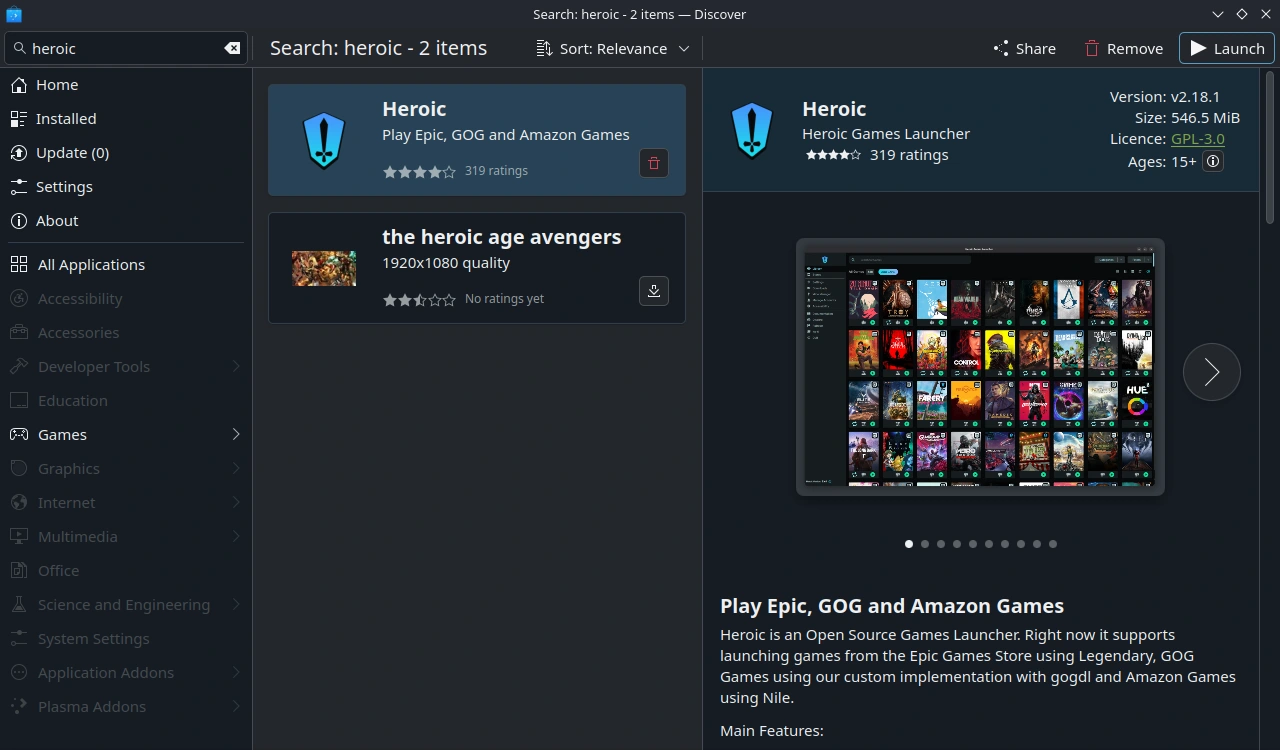
If you haven't pinned "Heroic" to your "Task Manager" then you'll have to launch it from Discover - like this.
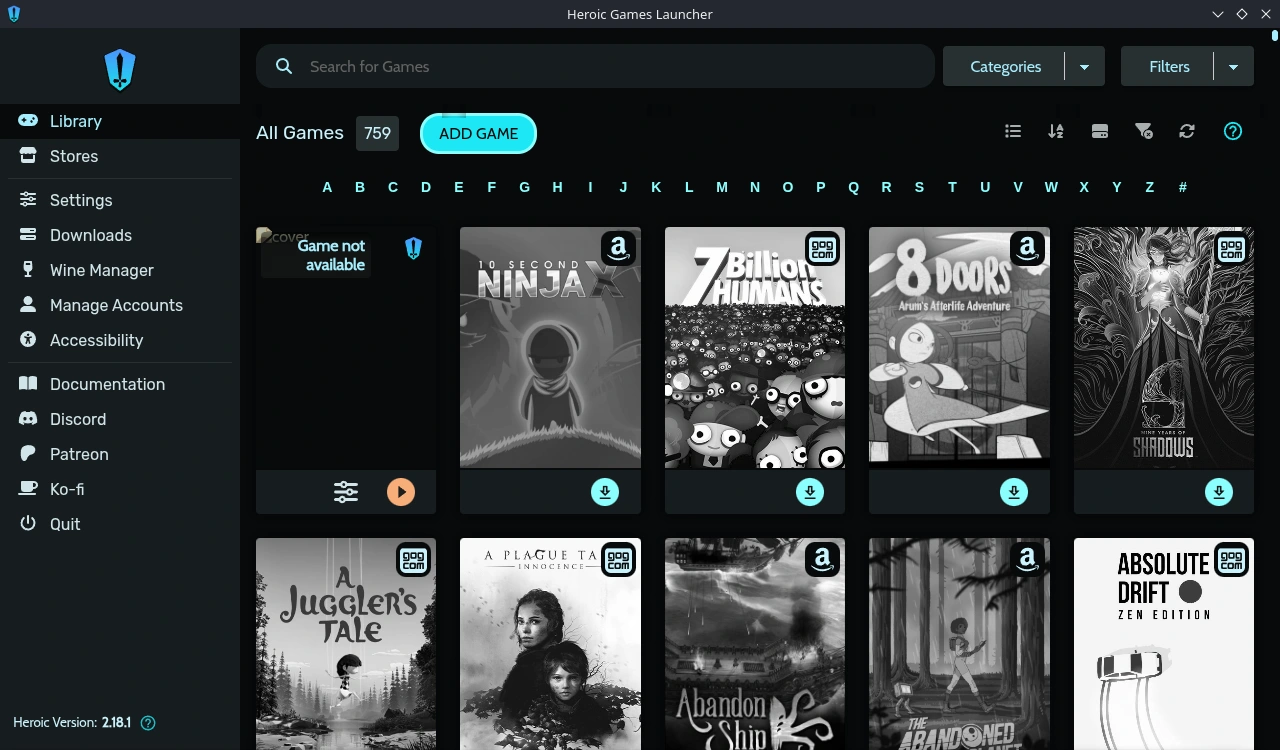
Unless you have added support for accounts you may hold with GOG, Epic, Amazon Prime (and perhaps others as time goes by) then you won't see quite as much as this, but what we are interested in will be staring at you front and centre - the "Add Game" button. This allows us to add pretty much any Windows program to Steam - and that's how we'll add BeebEm. There is, however, a slight wrinkle. Click the button and we'll move on...
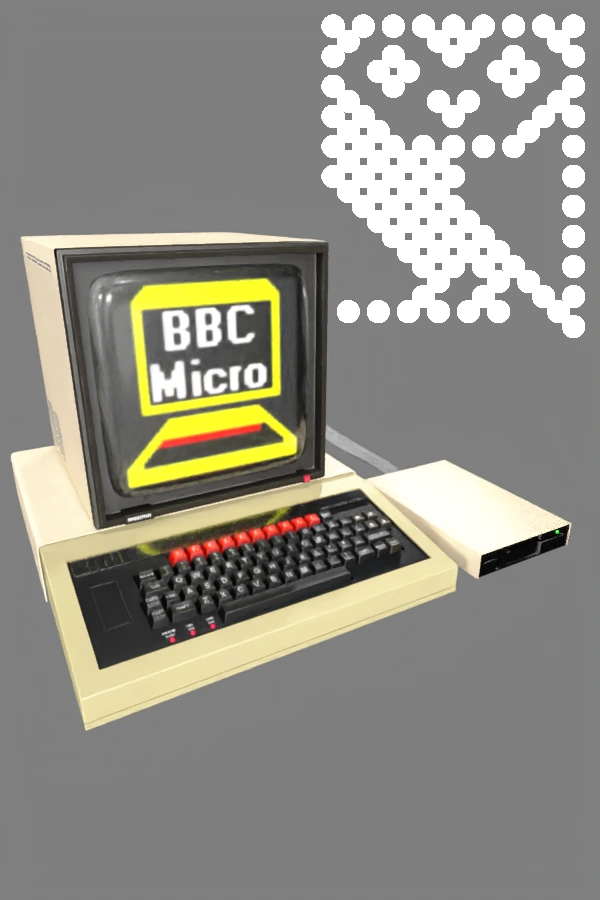
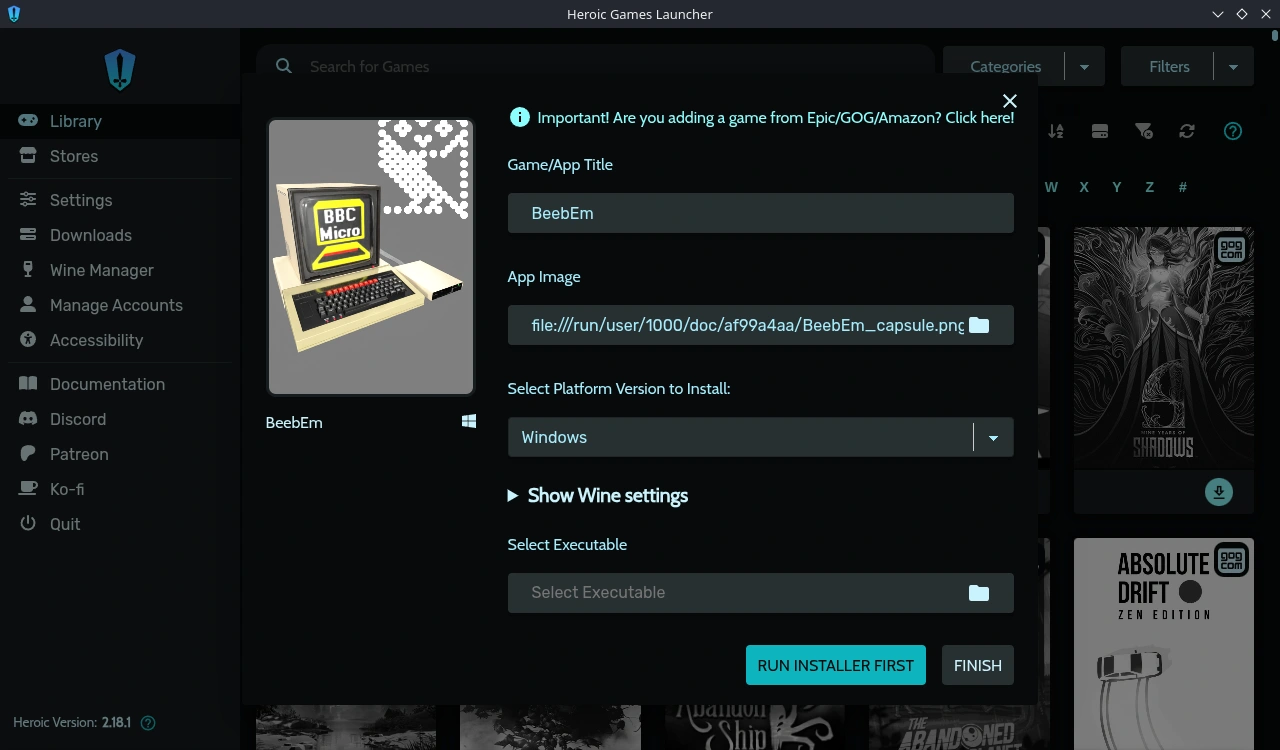
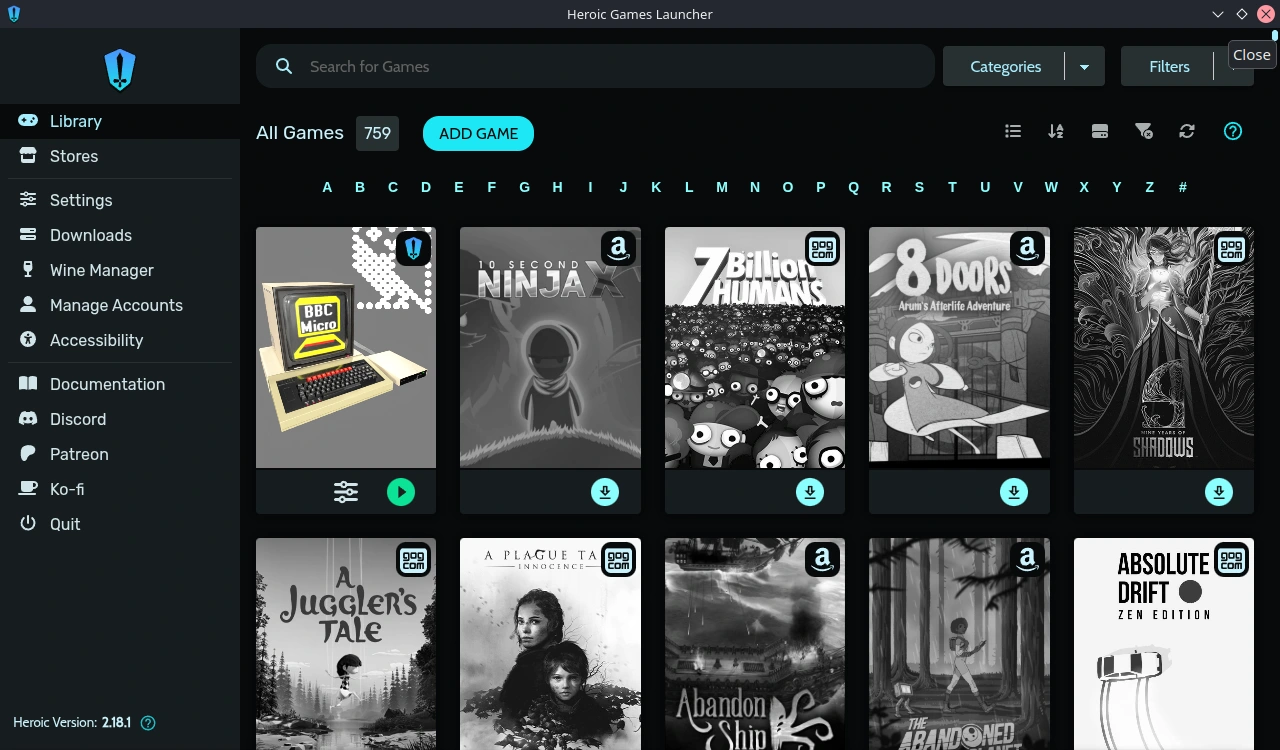
Name the App appropriately (eg "BeebEm"). Optionally you can supply a "Capsule" graphic for the Steam interface - feel free to use mine if you can download it in sufficient quality from your web browser, but don't feel compelled... this will not work as quickly as you'd imagine...
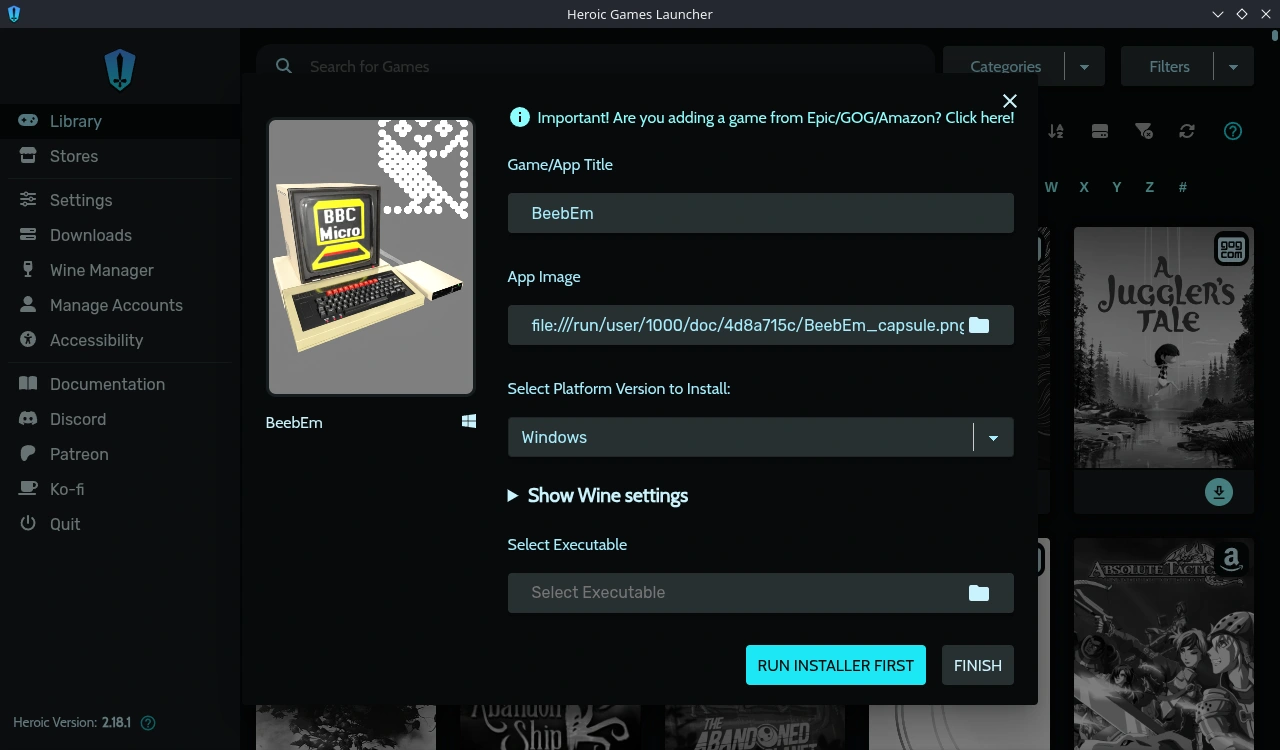
DON'T click on the nice blue "Find file" button to the right of the "Select Executable" yet - the BeebEm executable doesn't actually exist on the Steam Deck yet. Instead, Click on the bright "RUN INSTALLER FIRST" button which will allow us to install BeebEm properly.
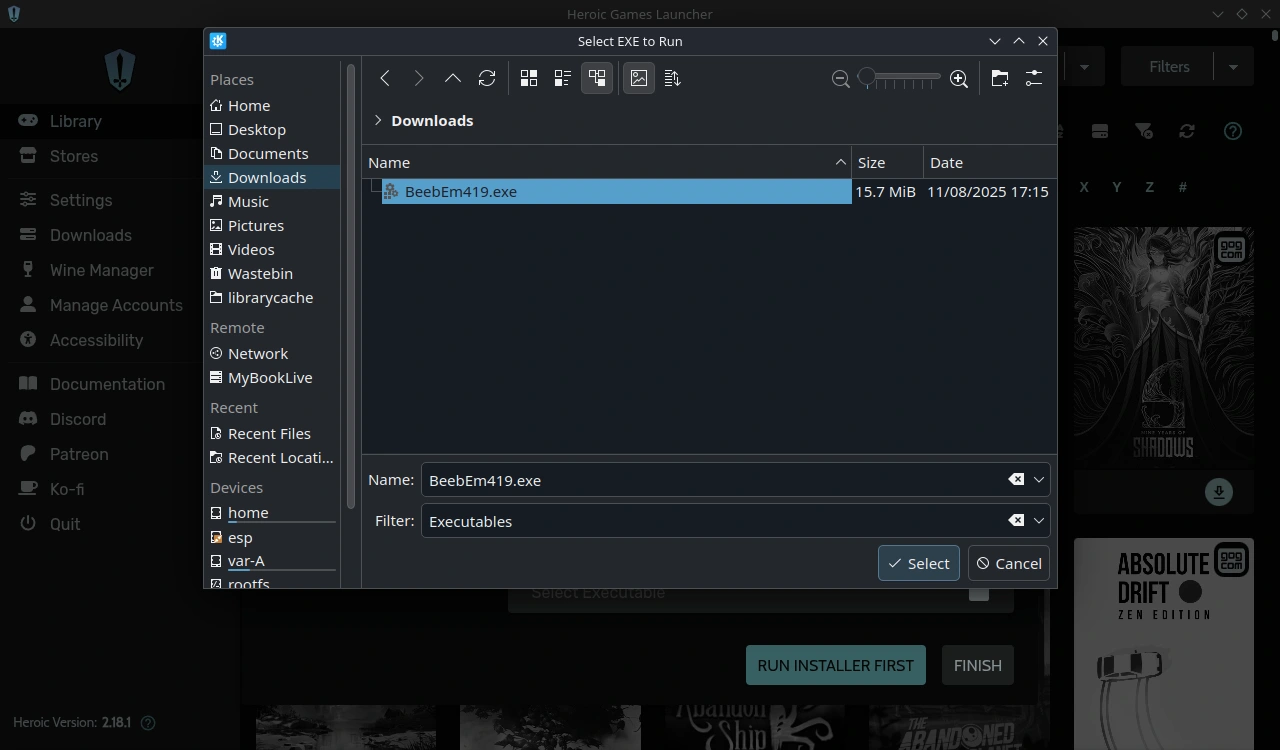
Find your installer (BeebEm419.EXE in this example) in the Downloads folder and either double-click it or click on it once and then click on the "Select" button. Basically, choose the installer!
Note: It's important to ensure you are doing this within Heroic, not in the Dolphin file manager.
The label on the "RUN INSTALLER FIRST" button quickly changes to say "RUNNING SETUP", but after a brief pause it looks as if Windows 10 is breaking into the Steam Deck to install BeebEm! I'm going to suggest defaults all the way, although technically it shouldn't really matter as we are installing BeebEm in it's own little container, away from everything else installed on your SD. So go ahead and click "Next".
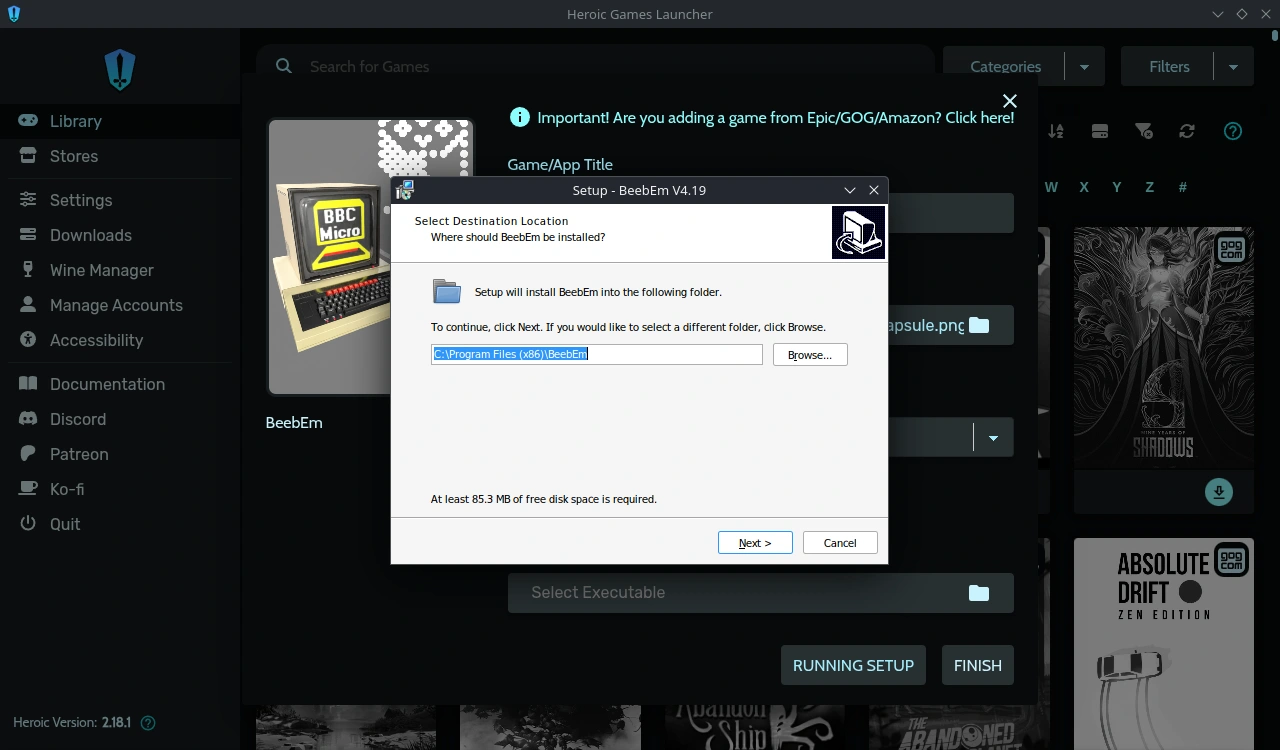
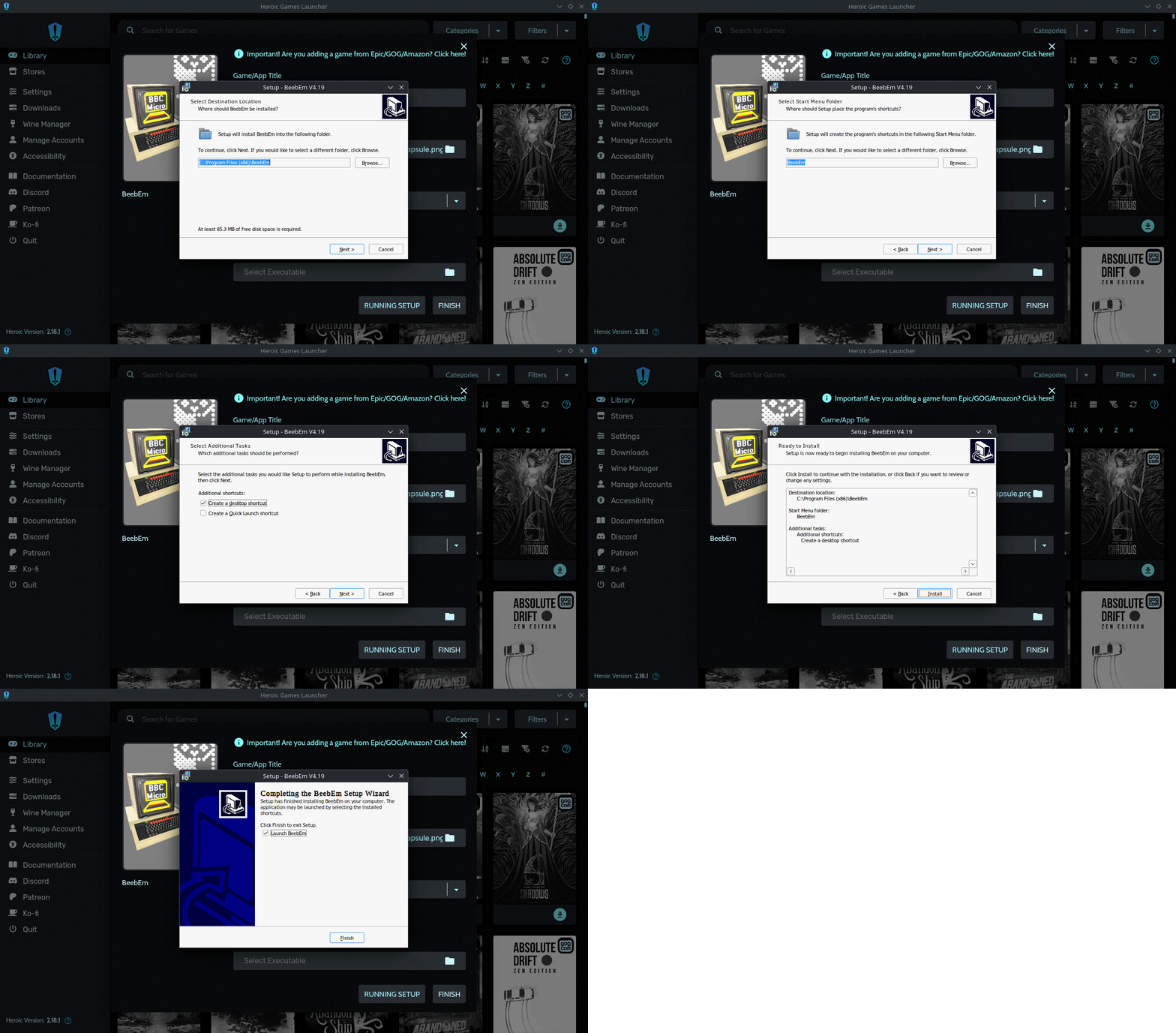
I don't think we need a lot of individual screen captures of the BeebEm for Windows installer - suffice it to say that we click "Next" to select the installation folder (BeebEm) then "Next" again (You can skip adding the desktop shortcut here if you like) the "Install" to get the process under way.
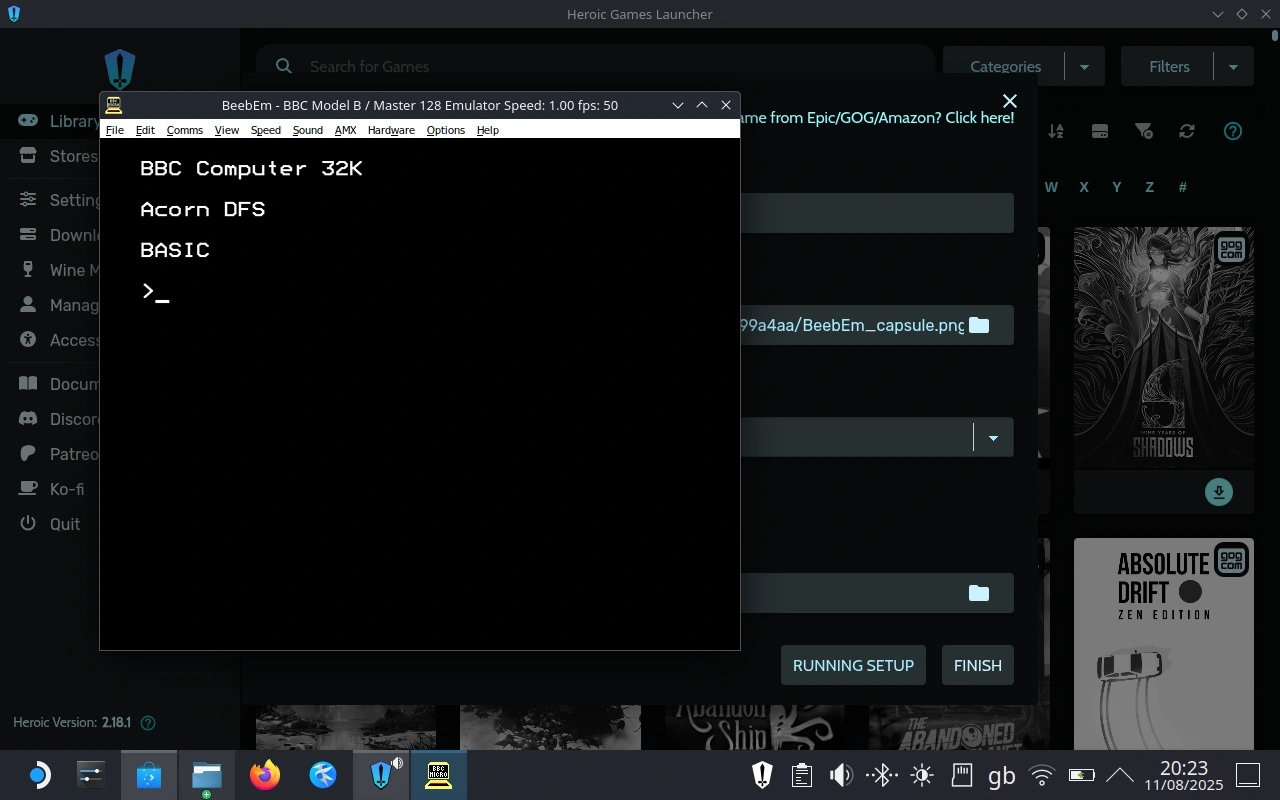
In short order BeebEm is installed and ready to run. It's up to you whether you want to deselect the tick-box to run BeebEm - personally I left it so that when I clicked "Finish" BeebEm started up in a window for me, right on the desktop.
If you DID run BeebEm up at this point, close it when you are ready to continue. Because although technically BeebEm for Windows is now installed - Steam doesn't know anything about it yet.
Completing Heroic Settings
Now let's look at that "Select Executable" field again - and click the blue "File Finder" icon to the right of it.
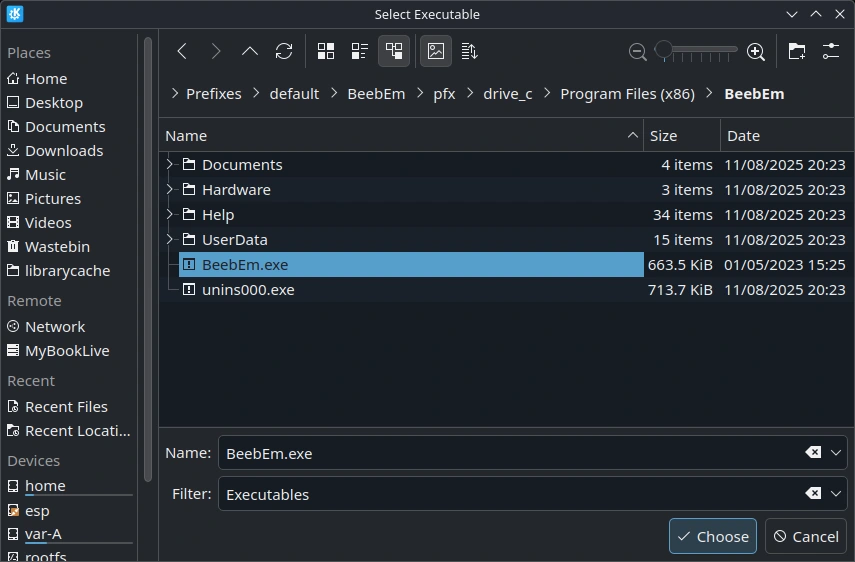
While it may not be immediately obvious, this is part of the Steam Deck's file system which "Heroic Game Manager" has to work within. I'm a big fan of knowing what files are put where, so you might want to glance up at the address bar. By default, Heroic Games Launcher places all the Windows applications you install into "/home/deck/Games/Heroic/Prefixes/default/" (which Dolphin "pretties up" for you to being "Home/Games/Heroic/Prefixes/default" - click in the address bar and you'll see the ACTUAL address...). Since we gave BeebEm the appropriate Title of "BeebEm" it will of course be in a "BeebEm" subfolder of "/home/deck/Games/Heroic/Prefixes/default".
Open the "pfx" folder...
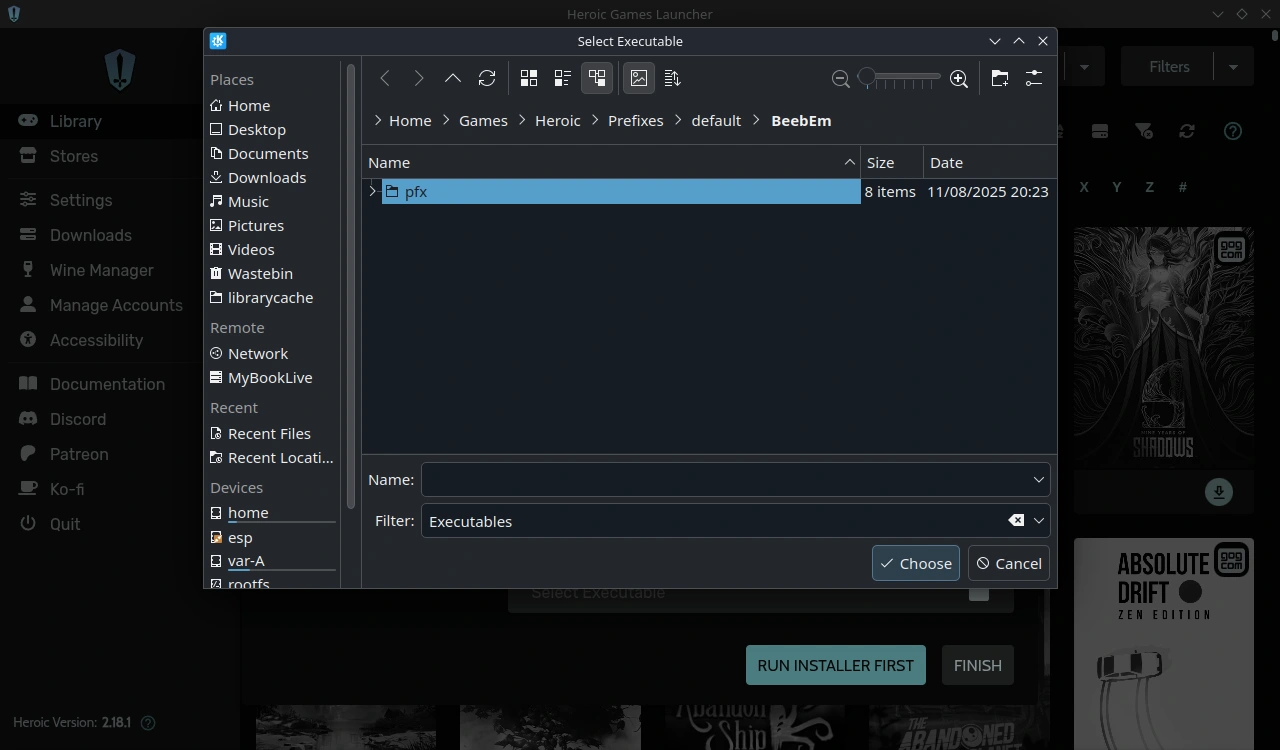
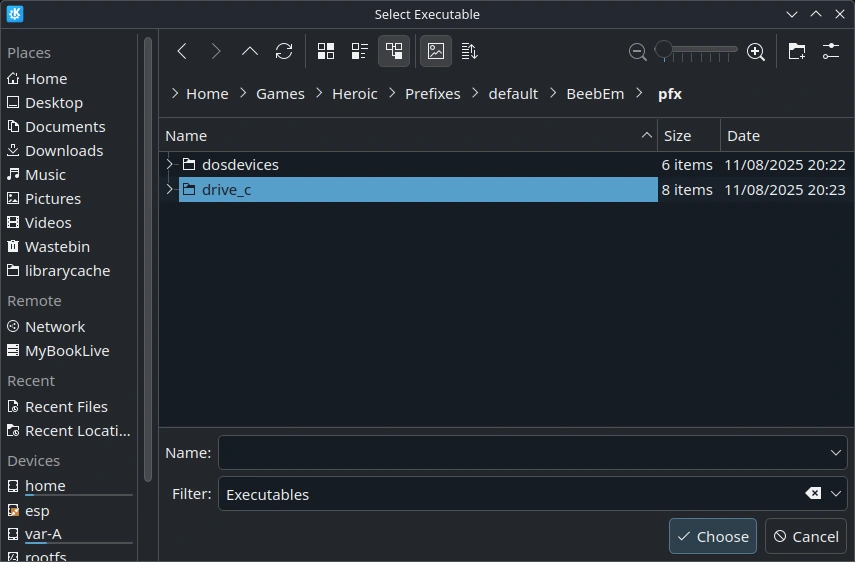
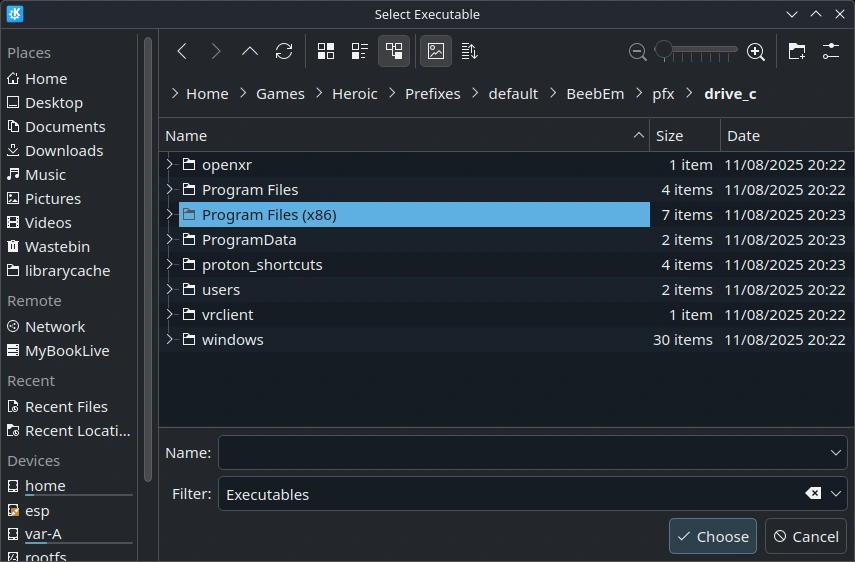
...and then the "drive_c" folder, which to BeebEm will appear to be the root of "Drive C:"...
Then open the "Program Files (x86) folder (so named because BeebEm is currently a 32-bit program. Trust me, it makes sense if you're nerdy enough).
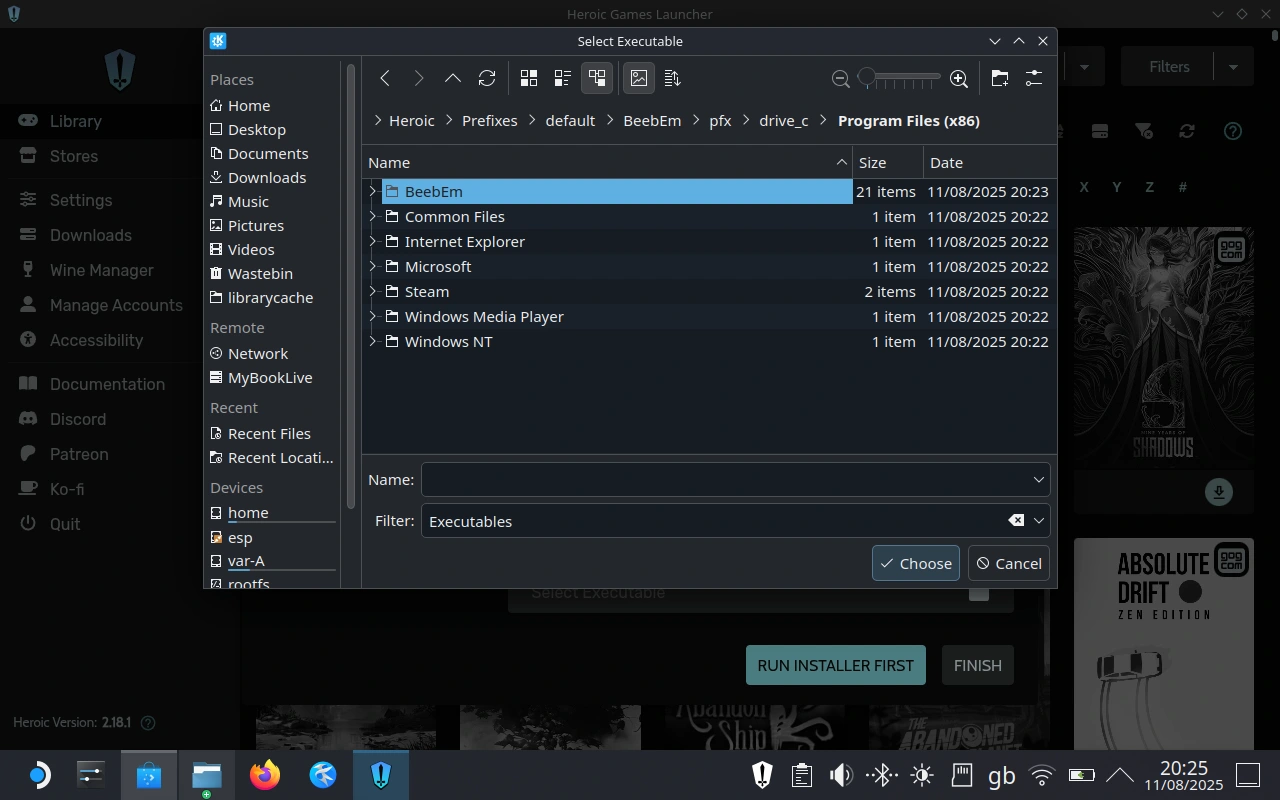
Finally! Open the BeebEm folder (or, if you changed the name of the install folder earlier on, open your chosen install folder).
At last, select the BeebEm executable!
Select it and then click the "Choose" button.
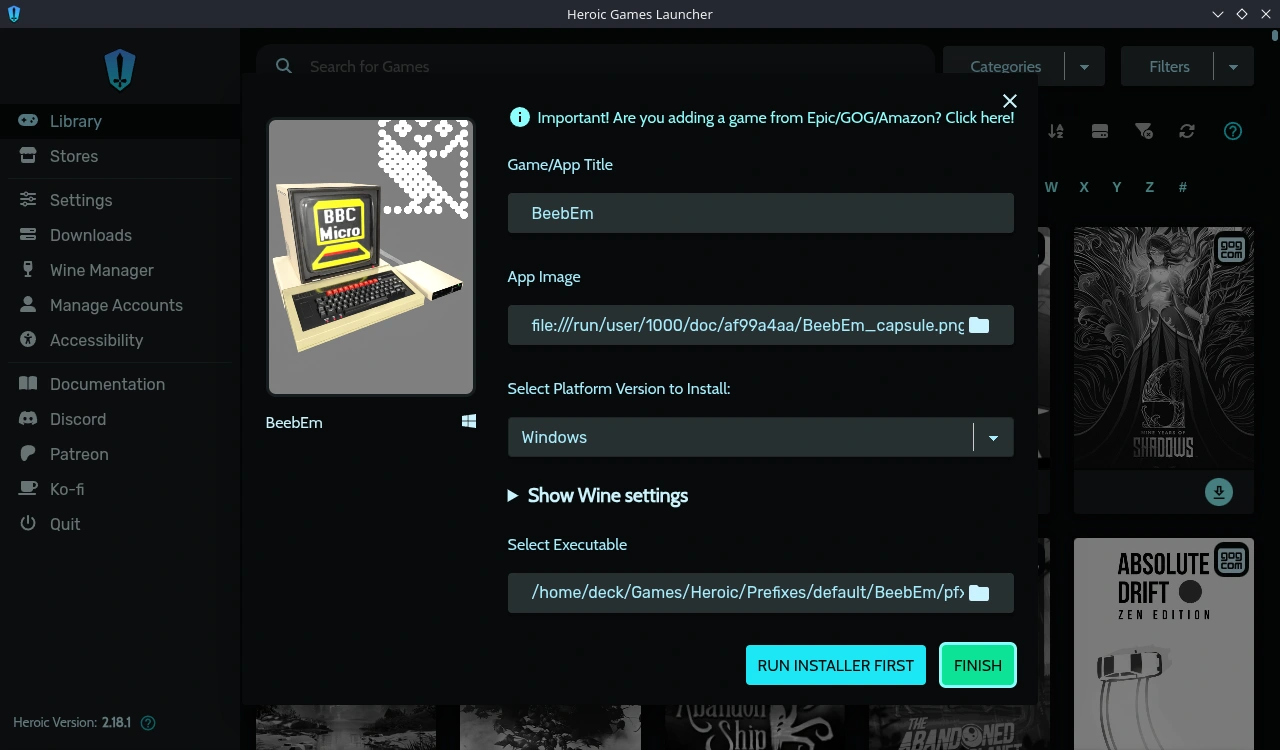
Click the "Finish" button to finalise the HEROIC settings for the BeebEm emulator (or whatever other App you may choose to add this way).
Adding BeebEm to Steam
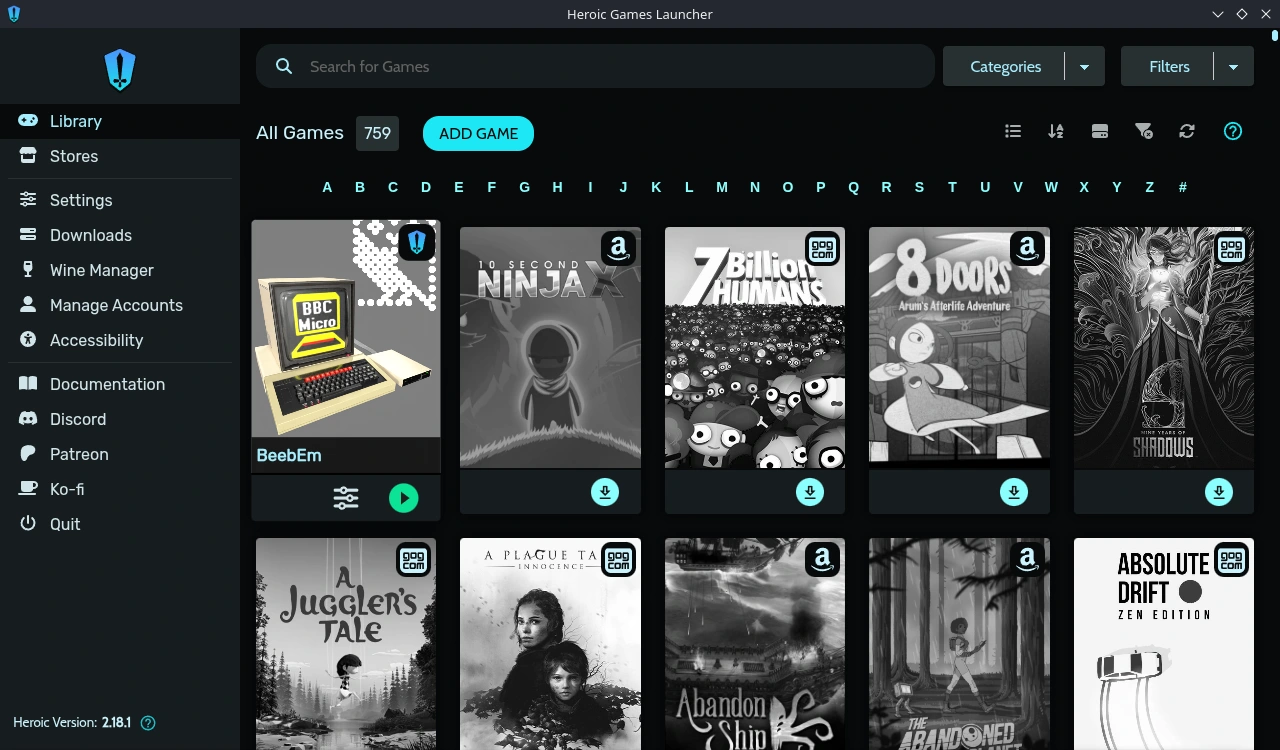
<-- If you chose to apply a "Capsule" image , I hope it looks good. I quite like mine, created using "Poser" to render a 3D model of a BBC micro with monitor and disc drive.
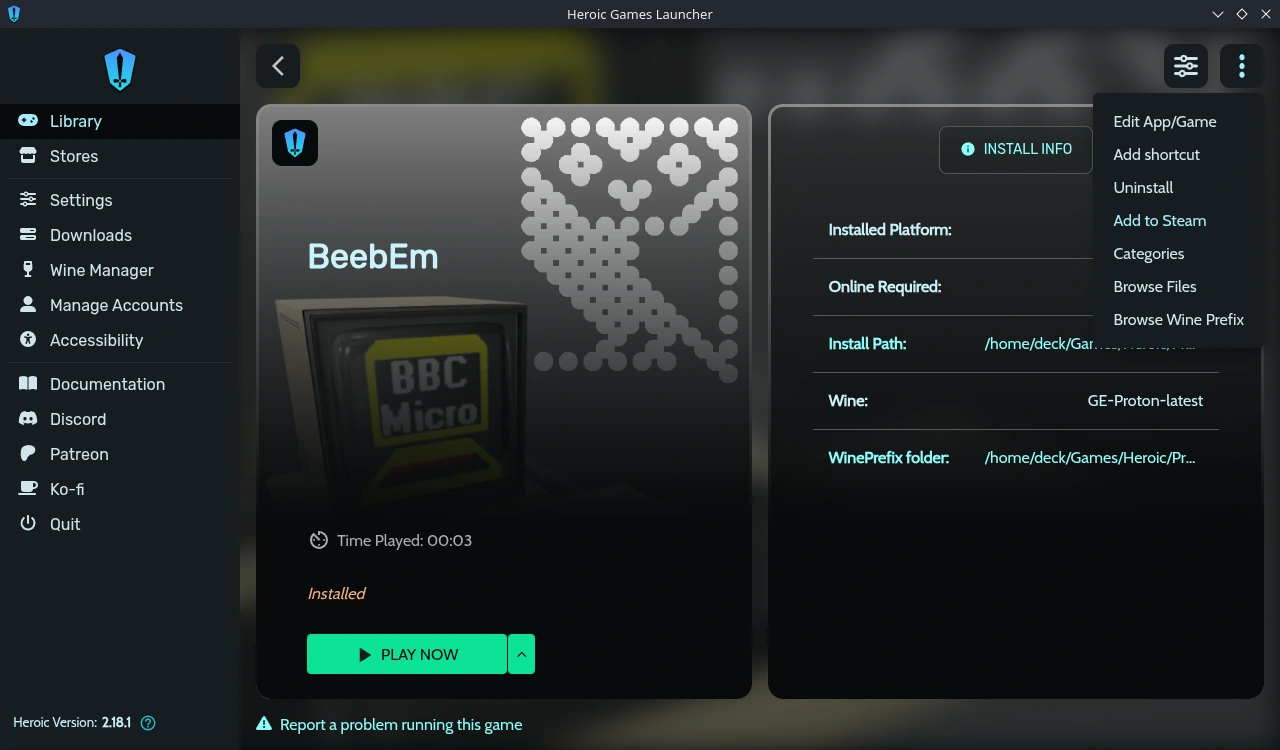
If you did not tick "Add games to Steam automatically" in Heroic (see the last step of the first tutorial in this series) then you may want to open up the BeebEm "game" and open up the three-dots menu to chose "Add to Steam" because otherwise, it's going to be rather difficult to run BeebEm from within the default Steam "Gaming Mode". -->
The "Capsule" looks pretty good here too, doesn't it? Mainly what you can see is the Acorn/BBC logo - but there's nothing wrong with a classic like that! Back out of this window using the "<" symbol (just above the top left corner of the BeebEm capsule) to get us back to the same point as the folks who DID do the "Add games to Steam automatically" thing.
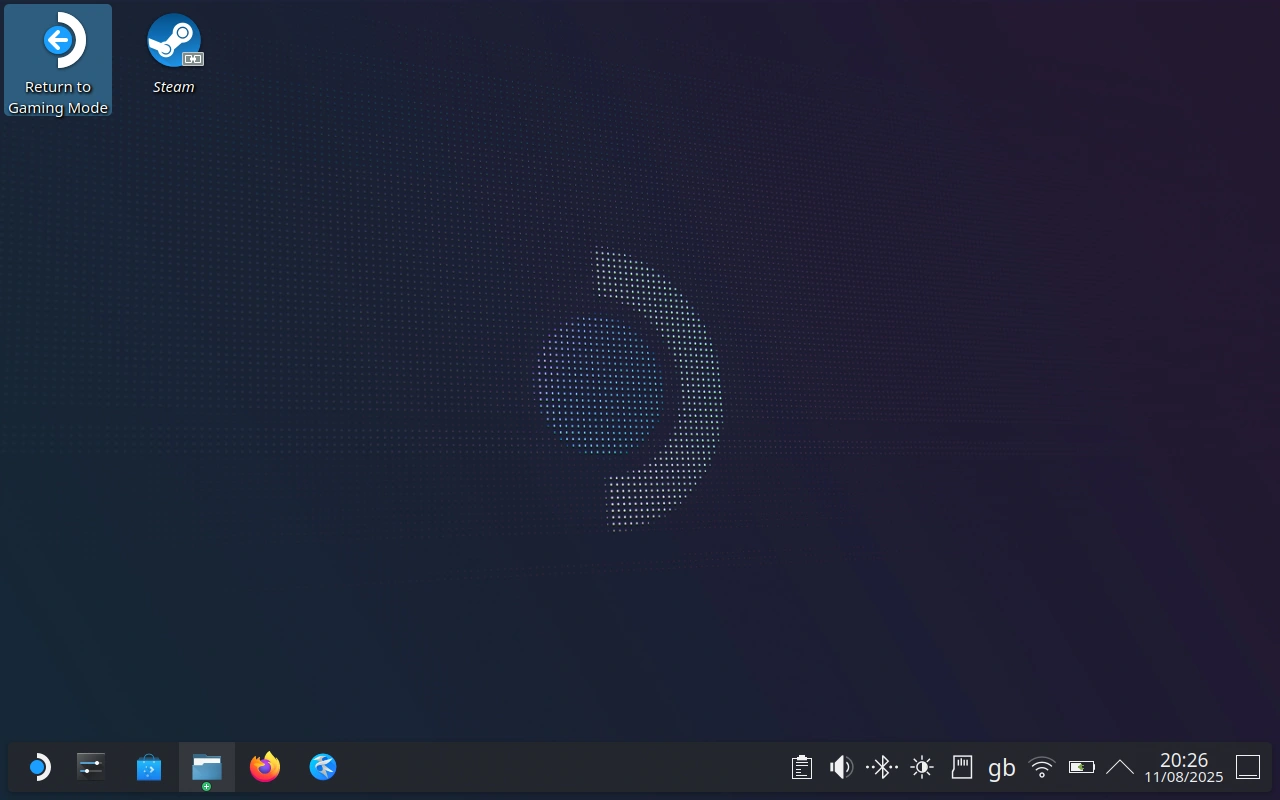
Double-click on "Return to gaming Mode" to get back to the usual Steam interface, ready to launch BeebEm!
Going back to the Gaming mode of the Steam Deck
Now you can go ahead and close Heroic. While you're at it, close any old "File Manager", "Discover" windows etc. that you may have hanging around, until you get back to the desktop
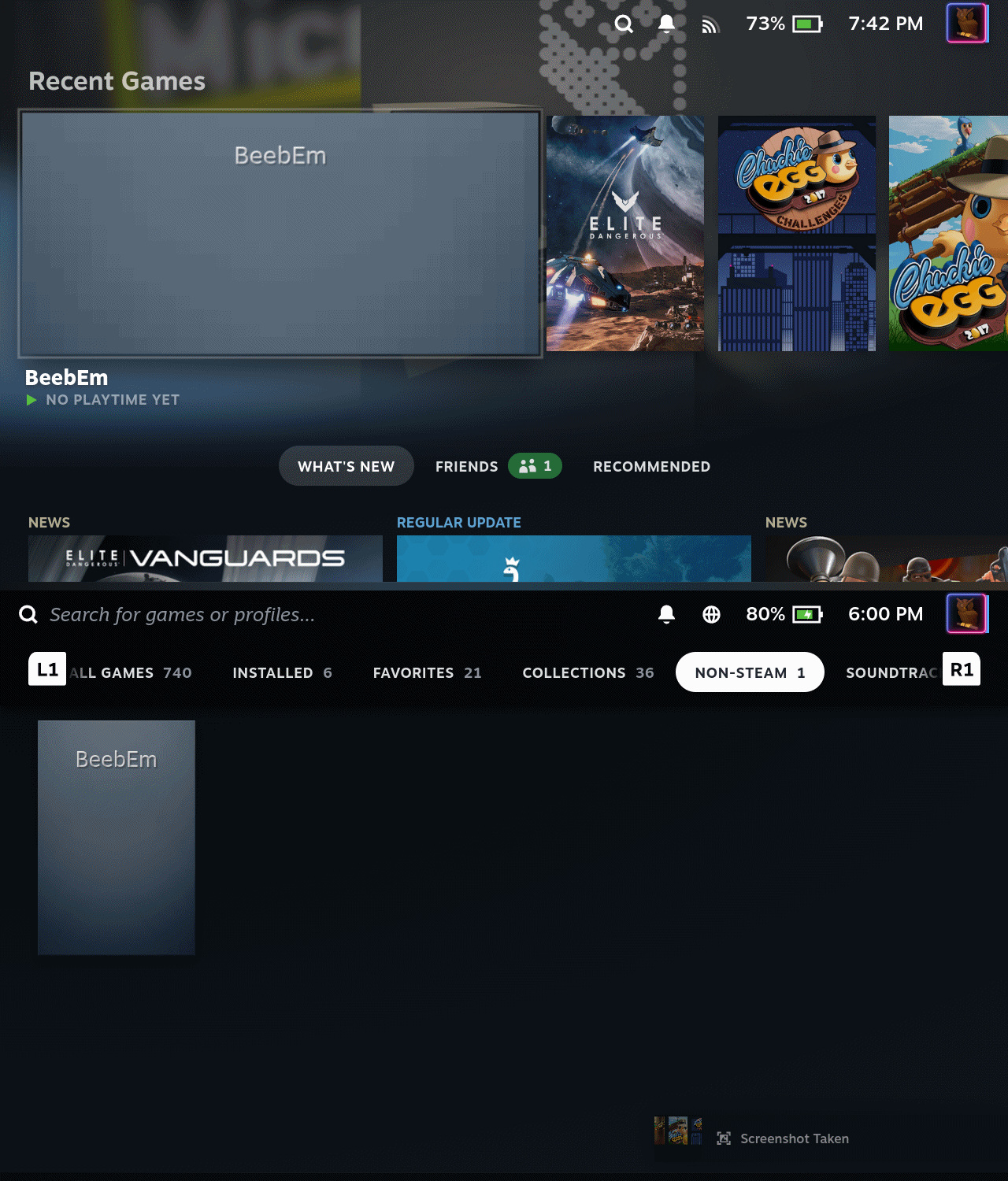
When you load up the "Gaming Mode" of the Steam Deck, how you locate BeebEm will depend on how your SD is setup, whether you add BeebEm to a "Collection" or not, and what game you last played. The only thing I can say for certain is that this will be a disappointing encounter to begin with. What happened to the pretty "Capsule"? More importantly - HOW do we put the RIGHT graphics in the RIGHT places for it to look as good as it should?
We'll come to all that in a later tutorial.
Make BeebEm more accessible
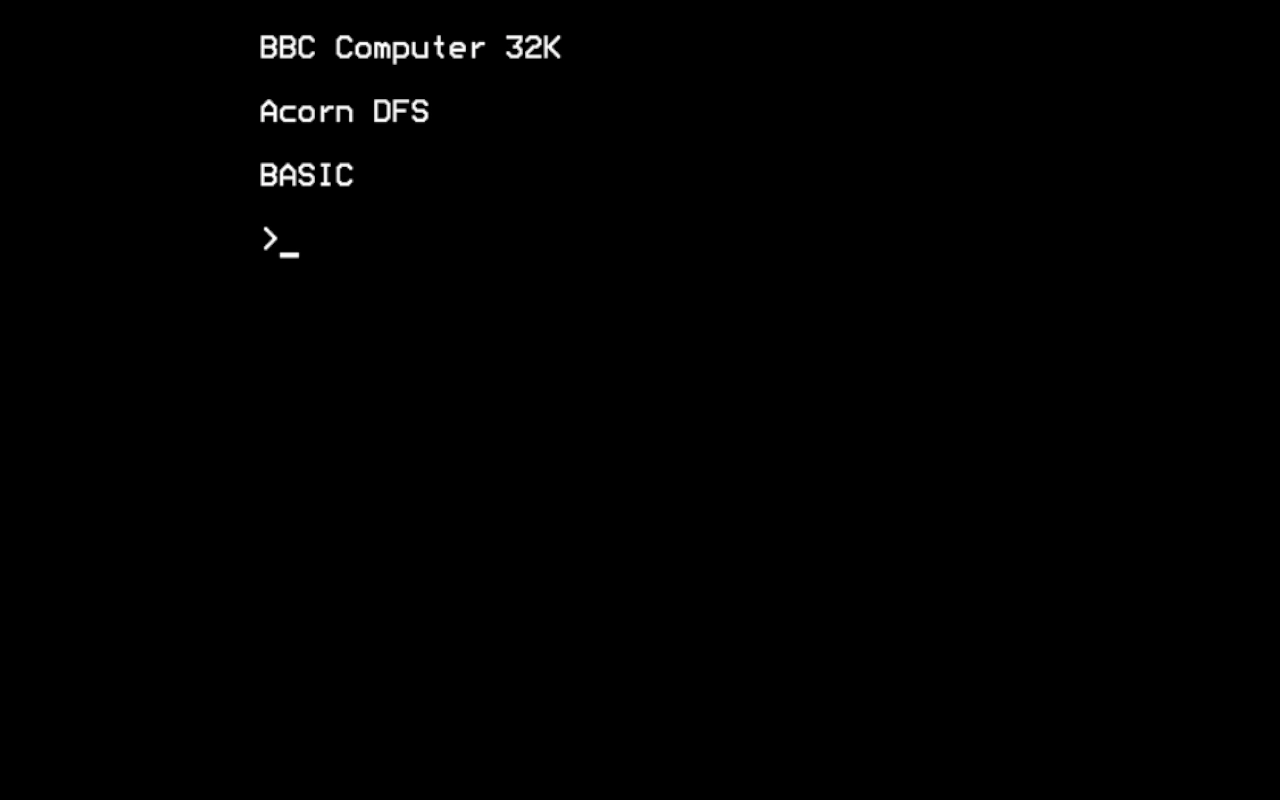
Load up BeebEm and voila! Some familiar beeping and the BBC screen appears, "full-screen" (with borders) instead of windowed! Now we're getting somewhere!
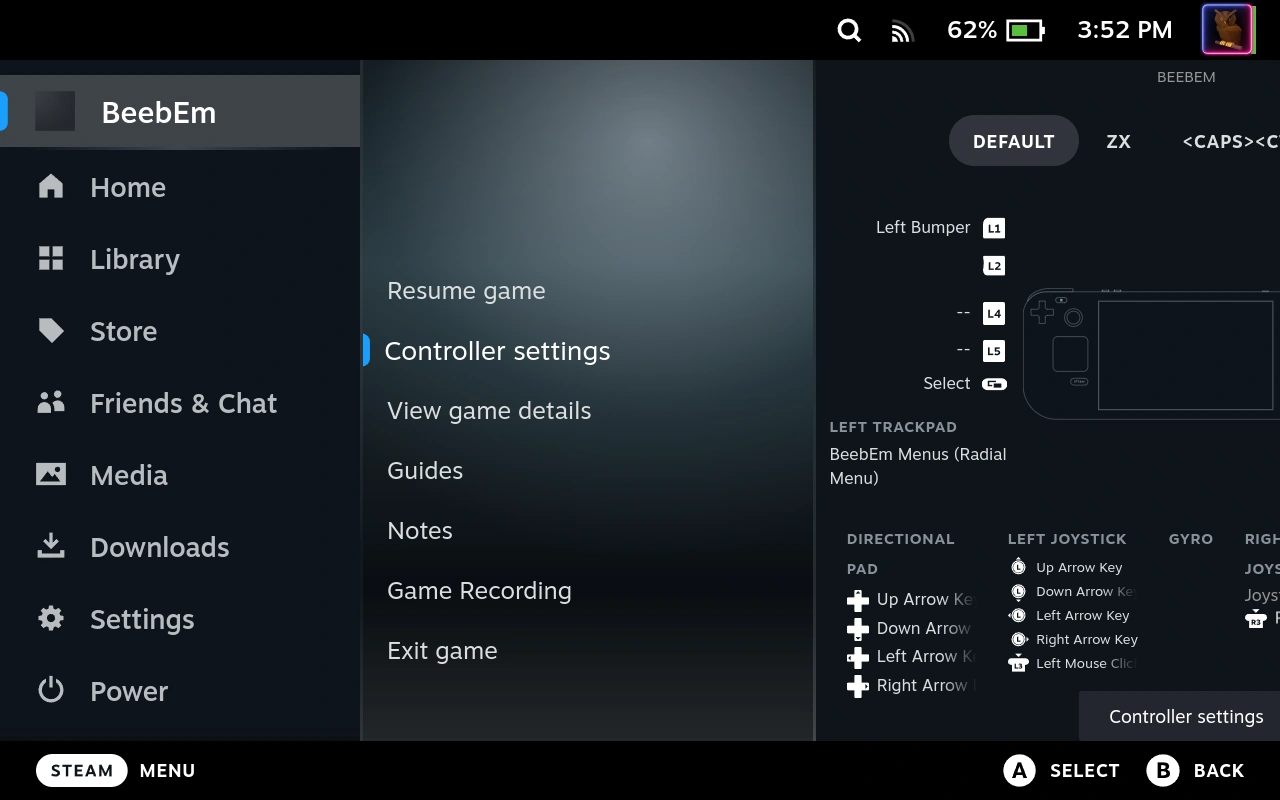
Click on "Controller Settings" (Hey, I don't know if you prefer to navigate using a keyboard, or a mouse, or the hardware controls or even the touchscreen - so I'll leave it up to you how you navigate around your Steam Deck).
Click on the "Steam" button to bring up this menu.
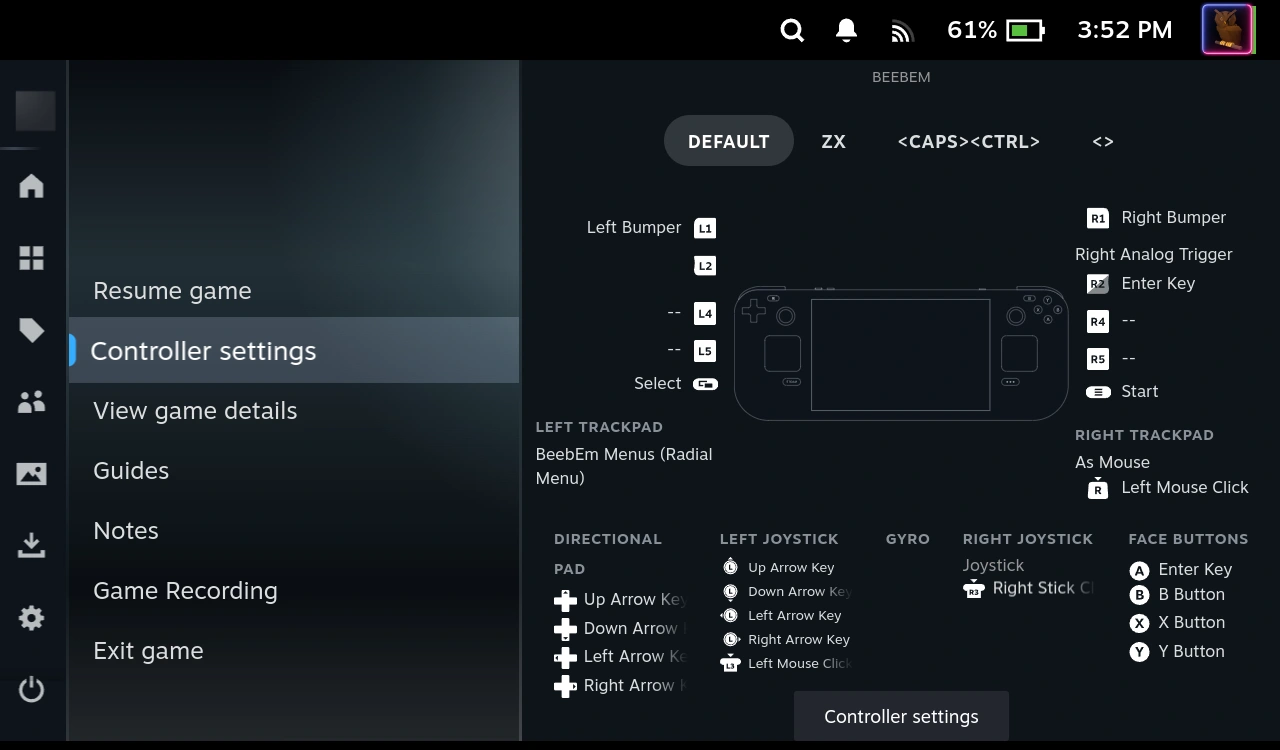
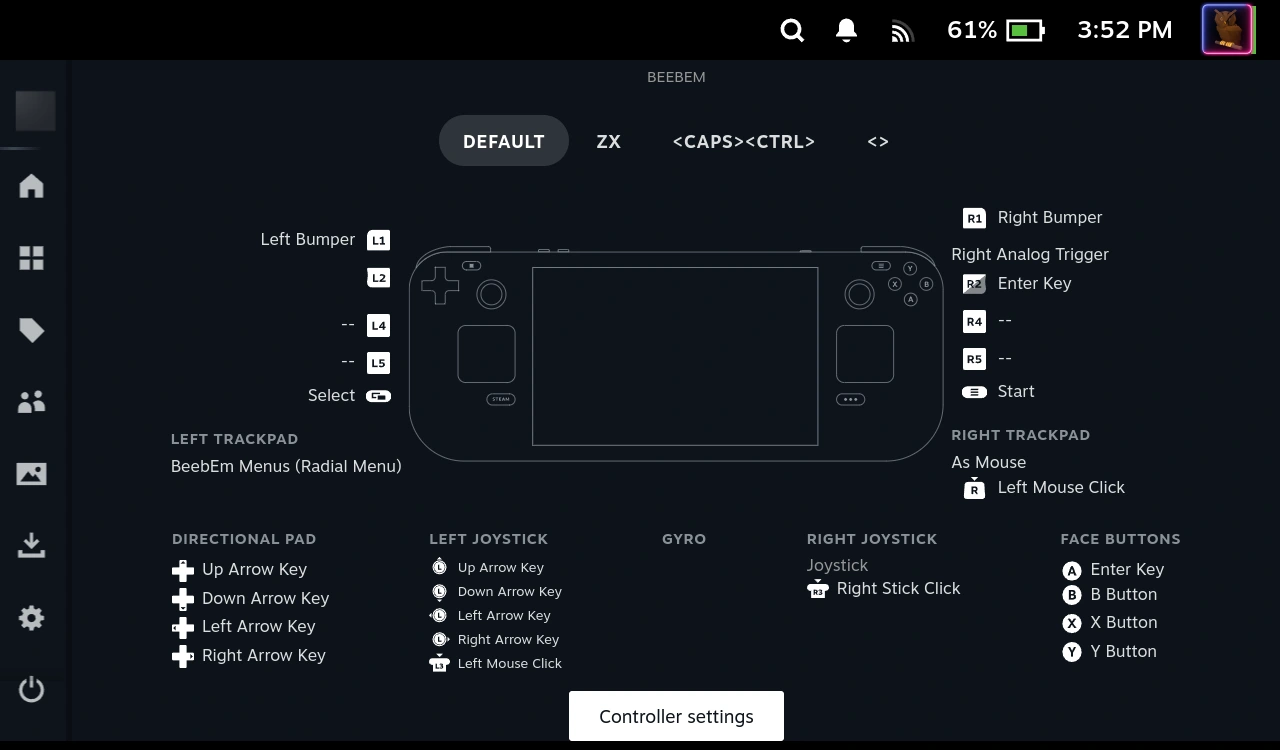
Click on, ah, "Controller settings" again... in the middle of the bottom row this time, as shown.
You probably don't have the "BeebEm" controller layout, but choose that big button at the top that includes the phrase "Browse Community Layouts".
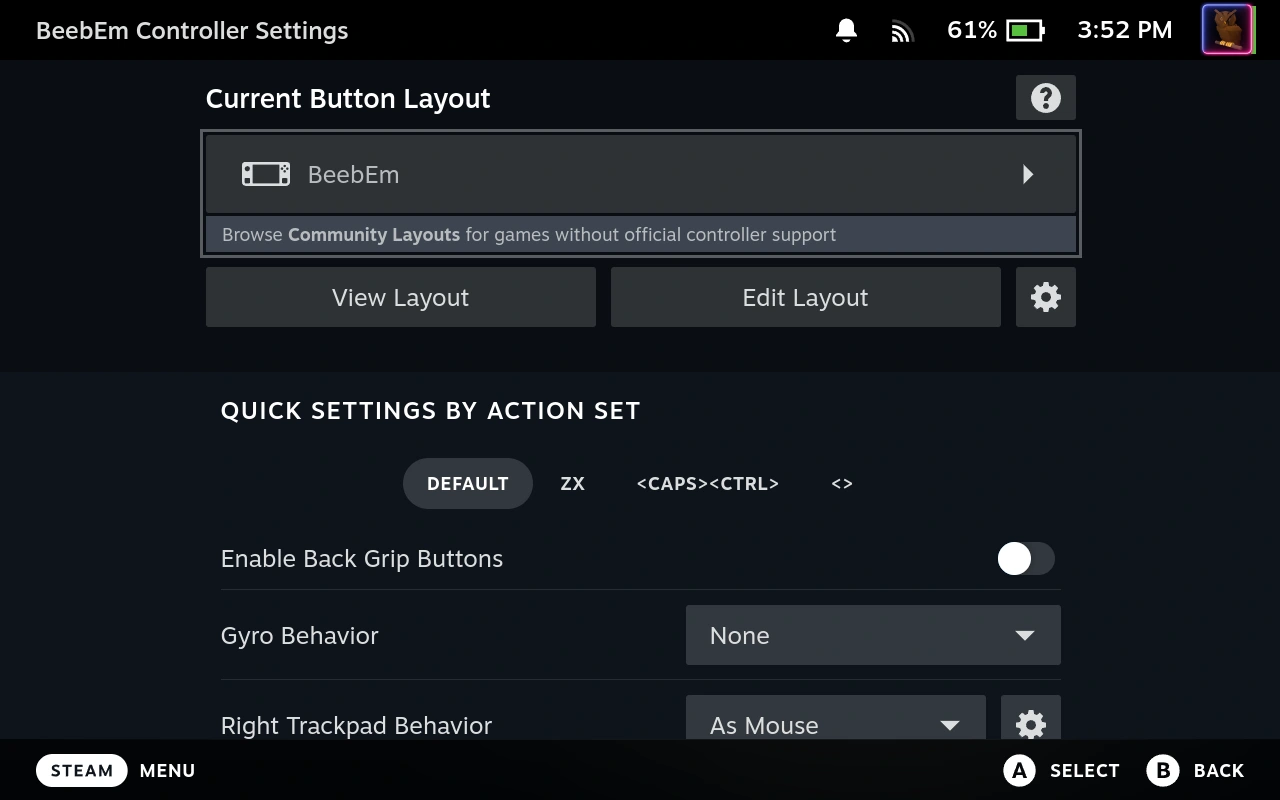
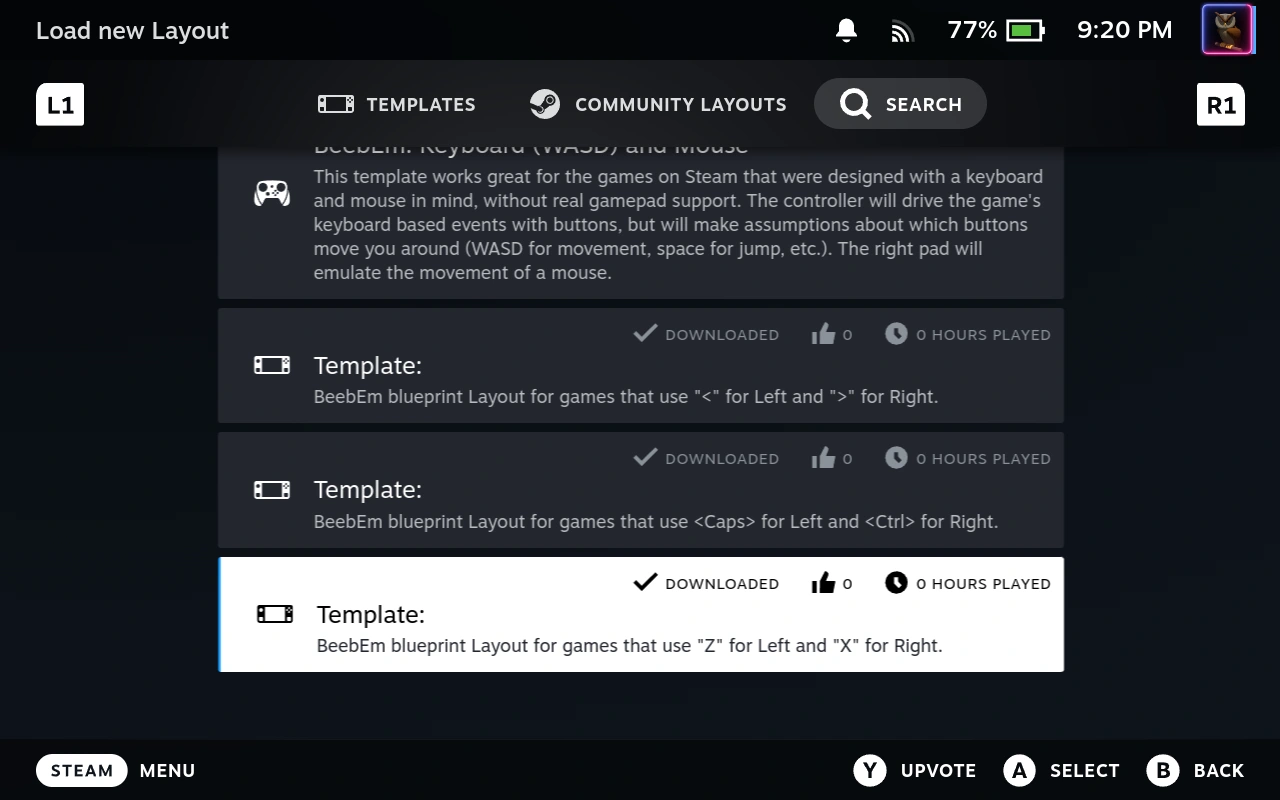
Zip along to the right until you come to the "Community Layouts". This will HOPEFULLY show my BeebEm layouts. If it doesn't go one step further and search for "BeebEm". I haven't shared layouts before so I'm hoping it will show up nice and easily. Remember to come back here later and "Upvote" this layout. I've no idea what good it will actually achieve, but it seems like the right thing to do.
Select the layout (A). You'll probably then have to press X to APPLY the layout. Work your way back out until you reach the BBC screen again.
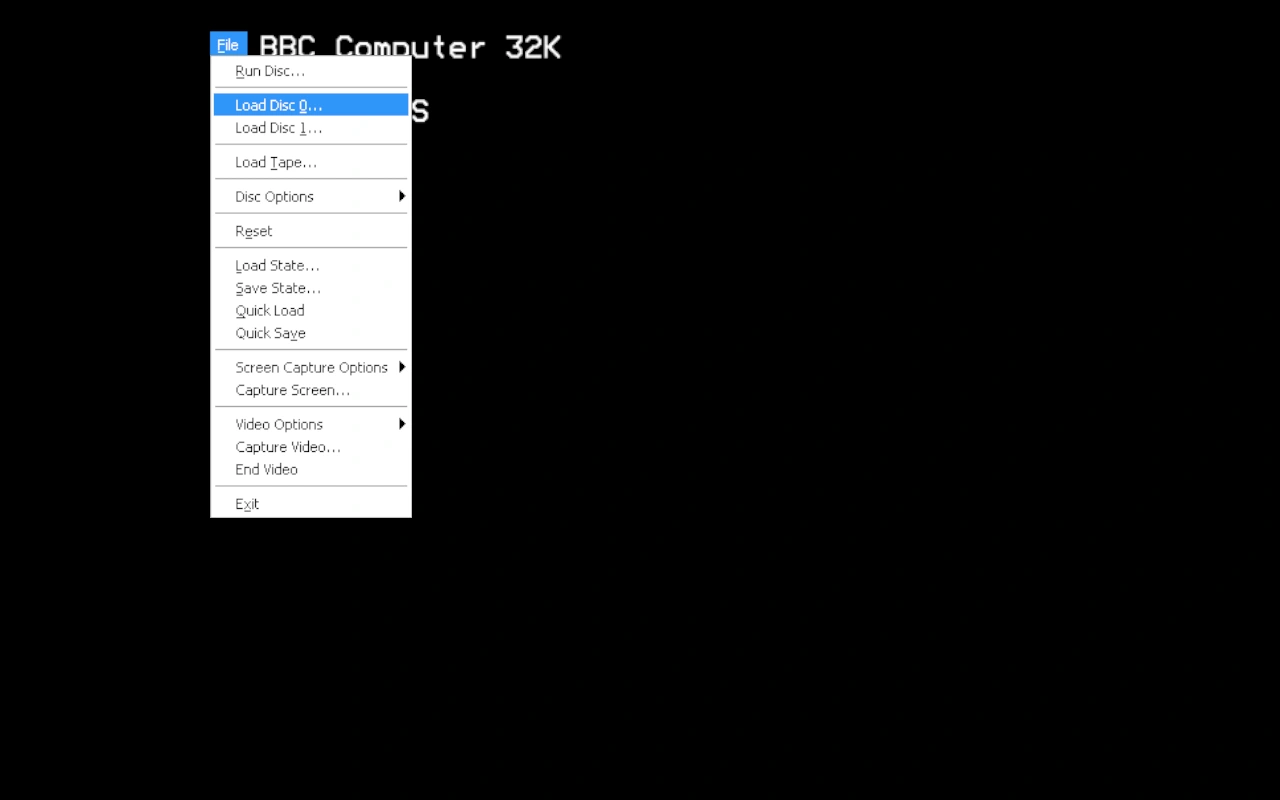
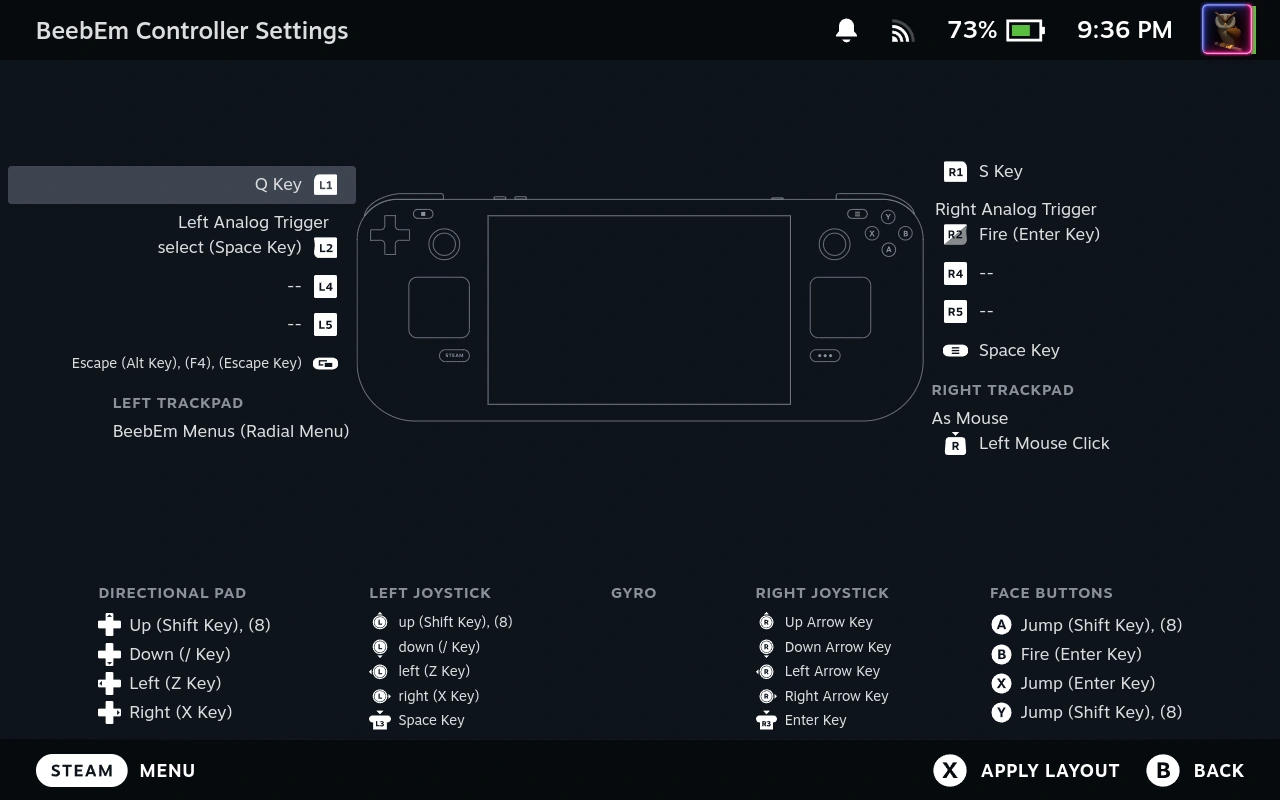
If all has gone well then if you move your thumb around on the left trackpad you should see that there is a radial menu, which allows you to choose among the BeebEm menus. Click on the "File" menu and then use the D-Pad or the left stick to move down to "Exit", and select that. Alternatively press the "Select" button on the Steam Deck and that will do the same. We've closed BeebEm!
Under the hood
So - we're back at this screen again. Still ugly, but we'll fix that later. While we're here though, let's have a quick look under the bonnet. Click on the "Manage" gear on the right.
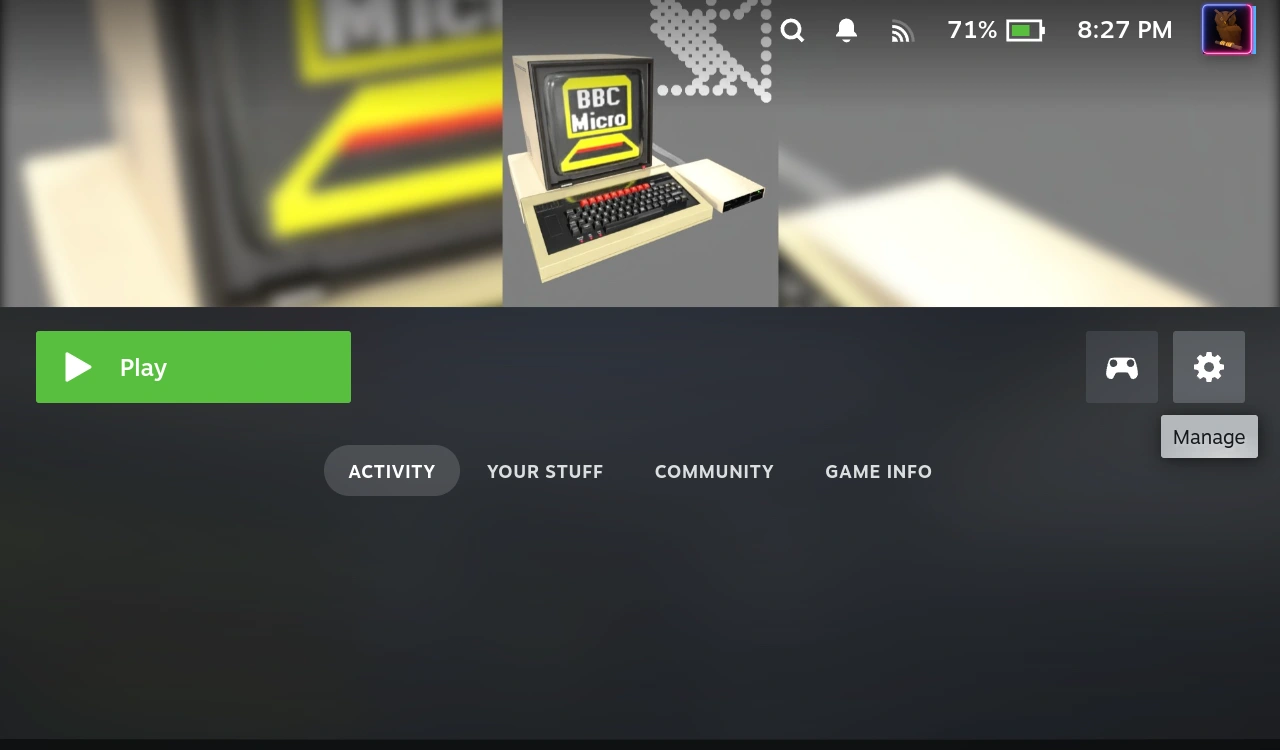
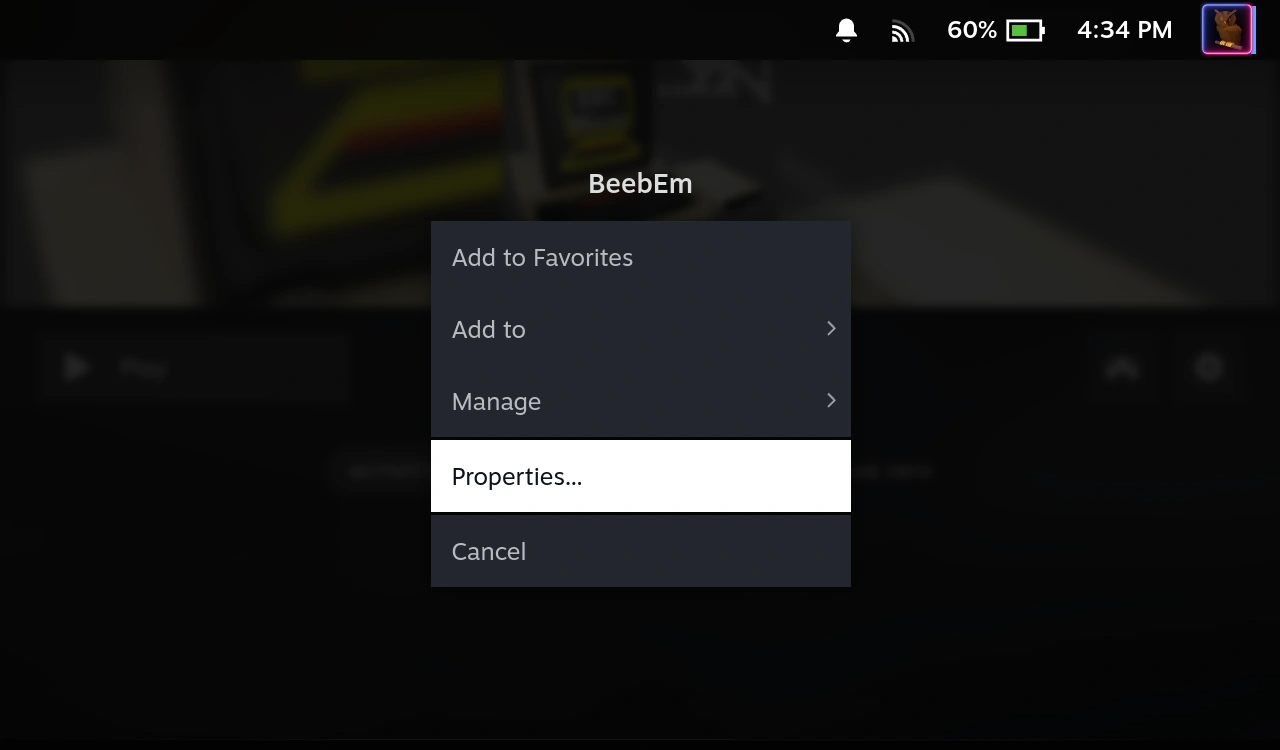
Click the "Properties" menu item.
Notice the square just below the heading "Shortcut". Pretty useless at this stage, just bear it in mind. Look now at the "Launch Options". The content is a bit too long for the field so let's scroll down the screen and scroll along to the right of the text field...
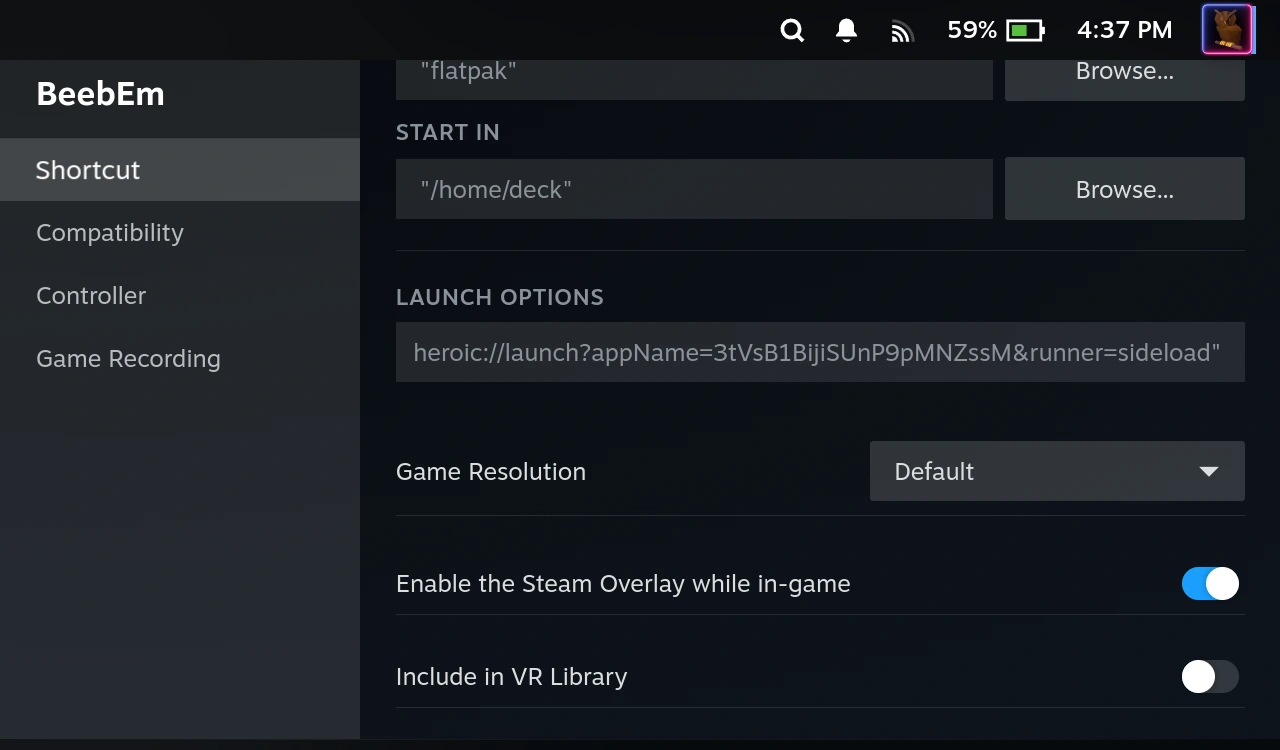
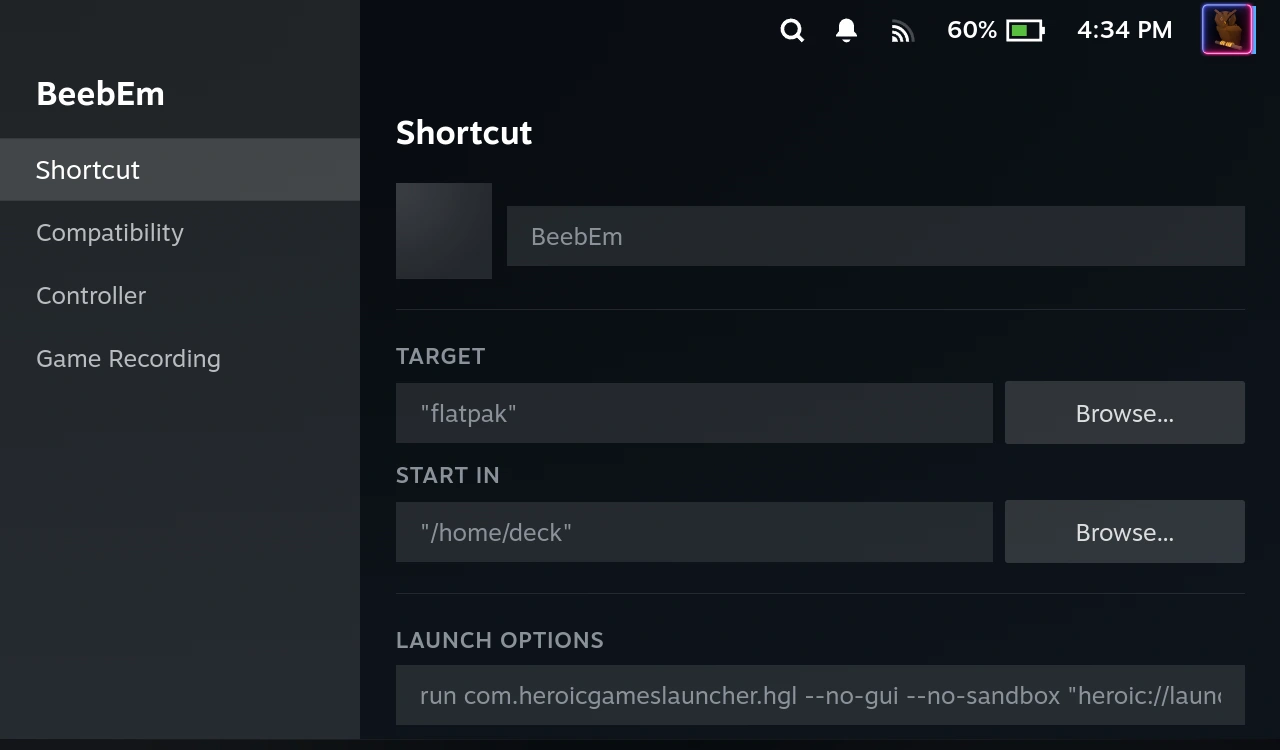
The entire string reads, in my case:
run com.heroicgameslauncher.hgl --nogui --no-sandbox "heroic://launch?appName=3tVsB1BijiSUnP9pMNZssM&runner=sideload"
The most important thing to note IMO is that Steam is instructed by this line to run Heroic, and Heroic is passed information that identifies BeebEm to it as an app to run.
What the string contains EXACTLY will likely depend on the version of Heroic Games Launcher you have installed, how many games you have installed before BeebEm, how many games you have installed in HEROIC before BeebEm, and finally which direction the wind was blowing in when you performed the install. I've seen some quite different command lines from Heroic in the past, and this one seems a bit leaner (I did have a command string that ran Flatseal that ran heroic that ran BeebEm that swallowed the fly. Or something) . But still, don't panic about being different to mine, just be aware that one reason it takes so long to load up BeebEm is that BeebEm is far from the first thing the Steam Deck is doing. Wait till we get BeebEm to automatically start a game!* ;)
We'll be back here later... but for the time being, back out a few times back to the home screen - I'll be back with more! Looking at my plan I am supposed to go into adding games for the next step. Be exceptional to one another :)
*We'll optimise it somewhat.